Showing posts with label Infrastructure. Show all posts

Thursday, 24 September 2009

Removing the shutdown details prompt in Windows Server

If you’re anything like me, chances are you’ve got dozens of virtualised dev servers hanging around and you shut them off at the end of the day; you also have no idea what to put in the Shutdown Event Tracker Comment box. The event and comment do get written to the event log for future reference so I usually comply and specify an exact reason where applicable or with my standard comment “a” for “all good” or “a-team” or something like that!

In practice, I’m the only one using my dev environments and I’ve never had the need to remind myself why I shut down the server. The specific event is likely buried among the shut down/start up events anyway and it’s probably safe to say this feature was intended for multi-admin production environments.

The shutdown event tracker is just an extra hassle as a developer but it can be turned off:

  • Run –> gpedit.msc
  • Browse to the Local Computer Policy / Computer Configuration / Administrative Templates / System node
  • Locate and open the Display Shutdown Event Tracker policy
  • Set it to Disabled

Life = that little bit easier.

Saturday, 16 May 2009

Starting with SharePoint for Administrators

Whether you’re a newbie admin holding together a one man shop or a seasoned technical veteran, when you find yourself lumped with rolling out Windows SharePoint Services 3.0 and/or MOSS 2007 do yourself a favour and read this brief white paper on some of the more important considerations:

The above paper is about twenty pages and it’s a quick read that should help you step forward on the right foot. If nothing else, each of the topics presented links to additional TechNet and MSDN material and the paper is a valuable index from that perspective.

Like it or not, effective administration is pivotal to the success of the entire project from the very beginning right through the support phase and beyond; seemingly harmless mistakes made during the initial install can lead to major long-term problems. Like everyone else “doing SharePoint”, generic Windows/SQL Server/ASP.NET experience will get you started but you’ll still be faced with a very steep learning curve, depending on what you’ve been asked to accomplish. Bear in mind the SharePoint paradigm will not always sit right with conventional experience and may clash with existing corporate IT policies. SharePoint will challenge and frustrate you on many different levels, while at times seeming to throw common sense out the window.

Re-learning everything you know now isn’t strictly necessary to build a SharePoint environment :-) but the size and power of the SharePoint ecosystem does require a massive, sustained learning effort that will increase your professional maturity very quickly.

At a minimum, beware administering SharePoint will cover:

  • Windows Server
  • Active Directory
  • IIS
  • ASP.NET
  • SQL Server
  • XML
  • SharePoint farm management
  • SharePoint Designer

From there, a “standard” WSS/MOSS rollout can involve:

  • Integration with LOB applications
  • Virtualisation
  • SAN management
  • Backup and restore
  • Content deployment
  • Load balancing
  • High availability
  • Database clustering
  • Reverse proxies/caches and content delivery networks
  • Security
  • SSL certificate management and distribution
  • Kerberos
  • Code access security
  • XSL, CSS, Javascript, C#, TSQL
  • Solution deployment
  • Remote debugging
  • Performance overhauls
  • Antivirus
  • SMTP
  • Exchange
  • InfoPath Forms
  • Excel
  • Office applications (Word, PowerPoint, Outlook, Project)
  • [Your technology here]
  • [This space for rent in 2010]
  • [What did I miss?!?]

I’ve watched great admins balk at the overheads and oddities required of a SharePoint deployment, moving through the various phases of shock (ignore), denial (disbelief), anger (hate), depression (confusion), and finally acceptance (hope—SP1?!, resignation). If you’re moving through one of these phases or have come out the other end (or you’ve already deployed SharePoint and are starting to realise what’s involved), read this paper.

Sunday, 26 April 2009

Targeting x64 Program Files Directory with VS Setup Projects

If you’ve been working in an x64 environment for a while now this will probably be old news to you; if, like us, you’re finally moving across and you’re using Visual Studio setup projects, you may need to tweak some settings to get files going where they’re supposed to go. Especially if you’re installing to the Program Files directory.

One of our solutions employs a setup project to install a bunch of static files (primarily image, JavaScript, CSS, and Flash files) to SharePoint’s 12-hive. We use a separate installer for this because it considerably simplifies the WSS solution file and reduces .wsp/.cab build time.  I’ve just got to remember to update the version number every time we send a build off to IT for deployment ;-) I’ll also mention we point a virtual directory at this location so we could install this content anywhere.

The path to the 12-hive is said to be burned into every SharePoint developer’s brain so of course you know it resides under Program Files by default. In an x86 setup project, you can either drop files into the Program Files Folder—which is hard coded to use the special ProgramFilesFolder property (a variable containing the path to your Program Files directory) or you can configure the DefaultLocation property of the Application Folder to point to any location and use the special folder variables as tokens like this:

[ProgramFilesFolder]Common Files\Microsoft Shared\web server extensions\12\TEMPLATE\

Why not use the Program Files Folder? The install path is built up using the properties configured at the setup project level, such as Manufacturer, and don’t offer much flexibility to install to the 12-hive—even though it does sit under /Program Files.

This all works beautifully in our x86 environment but running the same installer in an x64 environment (Windows Server 2008) resulted in our sites breaking because the installed static resources couldn’t be found. The underlying reason for this was because the Application Folder was configured as described above and the ProgramFilesFolder variable was being replaced at install time by the x86 version of the Program Files path (ie. “c:\Program Files (x86)”). This can be overridden by the administrator but that’s not very friendly. Simply changing the TargetPlatform property on the setup project from x86 to x64 won’t help.

To correct this problem, the DefaultLocation property of the Application Folder was updated from ProgramFilesFolder to ProgramFiles64Folder and the TargetPlatform property of the setup project changed to x64. If you forget to do the latter you’ll receive one of the following errors at build time:

The destination path of folder 'Application Folder' is not compatible with the project's target platform 'x86'

The destination path of folder 'Program Files (64-bit) Folder' is not compatible with the project's target platform 'x86'

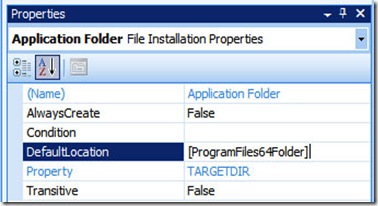
 x64 seploy project application folderx64 setup project application folder DefaultLocation x64 setup project TargetPlatform

We’re not using the Program Files (x64) Folder or the Program Files Folder folders so despite what the first images shows, I actually remove them to simplify maintenance.

My own confusion stems from the fact 64-bit Windows can run both x86 and x64 applications but they install to different locations. I think of it this way:

  x86 x64
Setup Project [ProgramFilesFolder] [ProgramFiles64Folder]
Windows x86 Program Files N/A
Windows x64 Program Files (x86) Program Files

In our case, we’re actually in the middle of a transition to x64: prod is running x86 and new prod, which is under construction, is running x64. On top of that our dev VMs are still x86. A setup project can only target a single architecture (sort of) so our solution was to simply add a second setup project. The first project remains untouched and we use it regularly at the moment; the second project targets x64 and we build it only when required (it’s only configured to build in the Release configuration). A VS solution can host multiple setup projects so there’s no problem with this arrangement.

Finally, it should be noted the Platform target of the source project that feeds content files into the setup project is configured as “Any CPU”. Since we’re not installing assemblies this doesn’t seem to matter. By was of a side note, the project containing our web parts and feature receivers is also configured to target Any CPU; MOSS obviously installs the related DLLs to the local IIS bin directories (IIS 7.0) but we’ve so far had no need to specifically configure these projects to output x64 assemblies. The beauty of .NET and the CLR at work? Dunno… but if not why are the options present?

Friday, 6 February 2009

Sharepoint Administration Toolkit 3.0 and spdiag now available

The Sharepoint Administration Toolkit 3.0 is now available in 32-bit and 64-bit flavours. This release add the Sharepoint Diagnostics Tool (spdiag) for collecting performance stats from disparate sources and helping out with the troubleshooting process. An spdiag user guide has also been made available.


Custom-Built Microsoft Office SharePoint Server 2007 Branded Sites and Webpart Development - info@mediawole.com

Friday, 2 January 2009

Software KVM

I never knew such a thing existed but Synergy is a software-based client/server application for sharing a mouse and keyboard across two systems and it's free. Note I didn't mention anything about the video side because the video aspect isn't covered by this tool. 

After some minor but clunky configuration to identify the server and tell the server where it sits physically in relation to the clients, this thing is dead easy to use: it's just like moving between windows on your extended Windows desktop except keyboard input is automatically "focused" (eg. no click required) on your moused-into computer, if that makes sense. 

I've got two machines on my desktop at work: my laptop with its desktop extended to a 22" Samsung and my VPC host machine--a grunty box with a single 17" monitor. By putting the lot side-by-side I can now remove one keyboard and mouse from my desktop--a minor win but pretty cool nonetheless. 


Custom-Built Microsoft Office SharePoint Server 2007 Branded Sites and Webpart Development - info@mediawole.com

Tuesday, 9 December 2008

Windows Server 2008 with Hyper-V vs VMWare Server

Back in March I wrote about my first experience with Windows Server 2008 RTM and the pre-release version of Hyper-V. Despite a fiddly installation issue with my locale set to Australia, I eventually got the problem sorted out and declared that I liked Hyper-V. Then I read Andrew Connell's post extolling the virtues of VMWare Server 2.0 and I abandoned Hyper-V to try it out (we run ESX at Tourism and I'd already noted the portability issues with a Hyper-V-based VM during my own trial). I didn't have a ton of joy with the 2.0 beta so stuck with v1.x while v2.0 RTMd--haven't tried it again since. 

I'm an Andrew Connell fan and when he mentioned he was switching back to Hyper-V I figured I'd revisit. The first real version of Hyper-V has now been released and I was curious to see whether the locale issue went away. AC also cited performance and since I had some gripes with the VMWare Server web interface I wanted to see how it would fare. 

The installation was painless today. Install W2k8 x64, install the MSU, install the Hyper-V role and hey presto. I'm currently installing a W2k8 x86 VM and haven't run into any problems with the VMM service not starting or anything else for that matter. My aim is to build out a base image of the OS, copy or snapshot it, and then go from there with a small farm MOSS build out for dev purposes. 

I'm also very curious to find out for myself how easily I can move VMs around and how far I can get with VPC 2007 VMs under Hyper-V... and maybe vice-versa if possible.


Custom-Built Microsoft Office SharePoint Server 2007 Branded Sites and Webpart Development - info@mediawole.com

Wednesday, 3 December 2008

Christmas Came Early

We're in the throws of all sorts of things physcial here at Tourism WA. Apart from an office refit (no more trestle tables but the dev team is currently stuck in the training room with no windows), the ICT team are completely rebuilding our virtual environment.

So what does that mean? To start with, redundancy in terms of mirrored setups at head office and the data centre. Each environment is getting a rack full of new blades and some of these things shown in the picture--$170k worth of SAN or 10 usable terabytes of storage.

On the software side, we're going VMware ESX 3.5, Windows Server 2008 x64, SQL Server 2008 , MOSS 2007 x64, and .NET 3.5 SP1 (upgrading from Windows Server 2003 x86, SQL Server 2005, MOSS 2007 x86, and .NET 3.0). Should be interesting. 


Custom-Built Microsoft Office SharePoint Server 2007 Branded Sites and Webpart Development - info@mediawole.com

Thursday, 13 November 2008

Fixing the IE7/MOSS/HTTP 413/Client SSL/View State White Screen of Death

Content on the Tourism WA partner sites like Australia's Golden Outback needs to be accessible by content editors over the internet. To facilitate this, we use client certificates over SSL to authenticate users. Each certificate is additionally mapped to an Active Directory account to support granular control over specific assets and provide standard "auditing" (in the MOSS version history sense) of user activity. Users additionally benefit from a single sign-on experience since IE hands off the client certificate in a relatively seamless manner.
In the image below the first box describes how client certifcates are created and provided to the content editors; the second box describes how IE and IIS authenticate the user to MOSS via AD.

This approach looks pretty nice on paper apart from the manual task of creating the client certificate and the potential distribution security. Our external content editor user base is fairly small and well-known, however.

Following the launch of the first partner site using this security model, we came across a painful situation I'll describe here but hope you never encounter in the field. If you have come across this problem, hopefully this post will steer you in the right direction. 

So the problem: 

When attempting to save, check in, or publish a page, IE content editors were presented with a white screen (a page with nothing in it, more specifically) in a relatively short timeframe. The problem appeared to be sporadic and definitely affect some pages but not others.

Inspecting the content editor's machine revealed no hardware or software issues and nothing was logged to the client's event logs. The HTML source was nothing special with the IE Dev Toolbar telling the same story:

<!DOCTYPE HTML PUBLIC "-//W3C//DTD HTML 4.0 Transitional//EN">
<HTML><HEAD>
<META http-equiv=Content-Type content="text/html; charset=windows-1252"></HEAD>
<BODY></BODY></HTML>

Although some basic IE security and JS settings were tweaked, friendly error messages were already turned off. As our initial user base was regionally-based and we mistakenly believed we couldn't reproduce the problem on the local network, we initially ascribed the problem to a lousy, congested regional network connection. I say we mistakenly believed we couldn't reproduce the problem because we generally use the non-SSL-secured internal site at head office due to an unrelated issue. 

This wasn't a lot to go on and we struggled to diagnose the problem while waiting for the installation of a WAN accellerator upgrade to our own regional office to prove or disprove our theory about the network infrastructure. Meanwhile, our third partner site came online and the content editors logged the same issue; this time, those content editors were sitting in Perth on metropolitain ADSL 2+ wires.

With the installation of a broadband connection at home I decided to see what I could find out outside the corporate environment. I logged into to one of the secure sites and got lucky--I was finally able to reproduce the problem on one of every five or so attempts to save a rather large page. 

With that achievement under my hat I fired up my trusty friend Fiddler 2 and reloaded the site. As I mentioned above, the partner sites are delivered to content editors over an SSL-secured (443) connection; in other words, that means inspecting the HTML request/response data outside the browser would normally be a bit tricky. Luckily Fiddler 2 makes this easy--you simply need to check the Decrypt HTTPS traffic checkbox in the Fiddler settings (under Proxy Settings) and Fiddler will present you with the goods. 

In my case that was step one but step 2 meant I'd also have to hand over a valid client certificate since Fiddler essentially does the man in the middle thing to pull off the SSL decryption bit. Fiddler's documentation is pretty good on this subject so after exporting my existing certificate with a .cer extension I dropped it into My Documents\Fiddler2\ClientCertificate.cer (named exactly as shown). At long last I could not only reproduce the problem but I could even see under the covers of the HTTP protocol!

And it was that simple: hitting the same problem page a few times and Fiddler told me it was all about a lousy HTTP 413 error--all this for a bloody error code IE should have been showing me in the first place. 

Here's the request:

POST /en/ThisPageIsTroubba.aspx HTTP/1.1
Accept: image/gif, image/x-xbitmap, image/jpeg, image/pjpeg, application/vnd.ms-excel, application/vnd.ms-powerpoint, application/msword, application/xaml+xml, application/vnd.ms-xpsdocument, application/x-ms-xbap, application/x-ms-application, application/x-shockwave-flash, application/x-silverlight, application/x-silverlight-2-b2, */*
Referer: https://edit.problemsite.com/en/ThisPageIsTroubba.aspx
Accept-Language: en-au,en-GB;q=0.5
Content-Type: application/x-www-form-urlencoded
UA-CPU: x86
Accept-Encoding: gzip, deflate
User-Agent: Mozilla/4.0 (compatible; MSIE 7.0; Windows NT 5.1; .NET CLR 1.1.4322; .NET CLR 2.0.50727; InfoPath.2; .NET CLR 3.0.04506.30; .NET CLR 3.0.04506.648; .NET CLR 3.5.21022)
Host: edit.problemsite.com
Content-Length: 71069
Connection: Keep-Alive
Cache-Control: no-cache
Cookie: WSS_KeepSessionAuthenticated=443; MSOWebPartPage_AnonymousAccessCookie=443; s_cc=true; s_sq=%5B%5BB%5D%5D
 
HTTP/1.1 413 Request Entity Too Large
Content-Length: 0
Server: Microsoft-IIS/6.0
X-Powered-By: ASP.NET
Date: Sun, 02 Nov 2008 10:47:22 GMT
Connection: close

"What is an HTTP 413 error," I asked, just like you may be doing now? It means the server rejected the request because it considered it too big. Weird, considering the request was only just over 71KB but at least we could rule out the network--a good thing because a lot of our future content editors are very much regional.

The w3c tells us the following about HTTP 413:

"The server is refusing to process a request because the request entity is larger than the server is willing or able to process. The server MAY close the connection to prevent the client from continuing the request.
 
If the condition is temporary, the server SHOULD include a Retry- After header field to indicate that it is temporary and after what time the client MAY try again."

I mentioned page weight previously and the title of this posting also ties in viewstate. Why? I've already suggested the white screen problem seemed to affect some pages but not others. While investigating this problem, I noted the viewstate on most of the anonymous partner site pages is very low at a <2KB.

Still with me? 

We're currently running on Windows 2003 and IIS 6.0. When IIS has to deal with client certificates, the server uses the UploadReadAheadSize metabase property during the SSL preload process to determine the maximum buffer size for the incoming request. The default buffer size is 48KB to prevent denial of service attacks and for that reason Microsoft doesn't recommend setting it too high. In our case, the 71KB request was considered too large and IIS wouldn't let it through. Why the save/check-in/publish worked sporadically I can't say, but increasing the value assigned to this property instantly fixed the problem. We increased this setting on every relevant IIS web site using this command:

cscript adsutil.vbs set w3svc/1/uploadreadaheadsize 204800

Note the setting represents bytes, not kilobytes, and the TechNet article on changing this is incorrectly specifies a value of 200.

In theory the HTTP 413 should have come up in the server logs but if it did, we never caught it. 

For more information about the metabase changes, the following blog posts may be of use:

Custom-Built Microsoft Office SharePoint Server 2007 Branded Sites and Webpart Development - info@mediawole.com

Monday, 27 October 2008

Dynalink RTA1046VW DMZ Config Kills VoIP

While trying to speed up my P2P downloads yesterday I decided to configure a DMZ host in my Dynalink RTA1046VW router (on advice from a mid-2006 forum thread). My P2P ports were forwarded correctly, according to portforward.com, but I figured it would be worth the experiment.

As I'm now on a naked ADSL 2+ plan, I no longer have a traditional land line and all inbound and outbound calls are shunted across the internet; to facilitate this, my analog phone plugs directly into the back of my modem. My new ADSL account was live on Friday and I spoke with my sister in Canada successfully for an hour straight on Saturday morning. On Sunday I configured the DMZ host and from that point forward I noticed I could no longer hear anything in the phone's earpiece. The internet connection was otherwise fine, apart from a few dropouts every so often, but there was absolutely nothing coming out of the phone's earpiece; calls were otherwise going through (sporadically) but the caller could hear me fine. To top it all off I got home tonight and successfully replayed my phone messages. The problem was reproducible with another phone. Weird. 

The only thing left to do was remove the DMZ host configuration and behold--the tin cans work! I don't get it--I really don't know much about VoIP but my guess is VoIP runs over a port and the port was being forwarded by the router to the DMZ host... dunno, especially considering the default setting is to simply discard packets not belonging to an application configured in the port forwarding table. 

[Update: Silly me, of course VoIP runs over a port--the port I set when I configured VoIP in the first place, duh. Anyway, I still reckon it was being forarded the DMZ host but I've noticed the kitchen microwave interferes with the phone and produces a similar problem where, after successfully initiating a call, I can hear the person I'm speaking to but they can't hear me.

By the way, my P2P speed reached about 180KBps down--a dizzying new height for the likes of someone who had no internet before this point.]


Custom-Built Microsoft Office SharePoint Server 2007 Branded Sites and Webpart Development - info@mediawole.com

Thursday, 9 October 2008

Don't Touch that Database!

Microsoft and urban legend have been harping on for yonkers now that we must never, ever touch MOSS content databases or risk voiding any hope of support. This basically includes modifying a content database in any way--from extending it with new functionality (sps, triggers, etc) to modifying existing data. This isn't always easy to avoid but luckily the API gives us access to most things in MOSS.

If you're wondering what exactly qualifies as database modifications or have modified a content database and now require support, you might want to read this:

http://support.microsoft.com/kb/841057/en-us

Saturday, 27 September 2008

VMware Stage Manager and MOSS 2007

We recently looked at moving our environments to VMware's Stage Manager and Lab Manager products. A large majority of our production, authoring/staging, integration and development environments are already virtualised on ESX so these new products an attractive option--they build on top of the ESX offering. The server structure was architected around the assumption MOSS 2007 content deployment works as expected in the case of westernaustralia.com but since it doesn't an admin does a daily stsadm backup/restore from authoring to production--horrific. 

Stage Manager sounds great in theory. Each environment is sandboxed and it takes the thinking out of dev vs prod because dev used to prod and prod is now dev and vice versa. Each environment is packaged up to include everything it needs (AD, database, web, etc). In practice, making this work with MOSS and our existing stage/prod-based content setup (not to mention public networking, host headers, security, machine names... in MOSS, and whatnot) wasn't quite there. If you are successfully using SM with MOSS I'd love to hear from you.

Lab Manager is a complimentary product for efficiently provisioning development (er, lab) environments. Your base image is stored as a template and it gets provisioned on request. This way I don't have to build a new VM for every new dev starting with us and individual developers don't have to spend too much time keeping their development environments up-to-date. We've previously run MS VPC 2007 and while it does the trick, Lab Manager really promises to simplify this stuff. We haven't finalised our purchase yet but I'll let you know how we get on with the product.

Wednesday, 24 September 2008

How to Create a stand-alone "small farm" MOSS 2007 VPC without a domain controller

Here's my quick and dirty guide to setting up a stand-alone "small farm" MOSS VPC without a domain controller. In this example I'm using Windows Server 2008 with SQL Server 2008, .NET 3.5, and MOSS 2007; I've been through this process on both x86 and x64 platforms--it's the same in both cases. Presumably this is pretty much the same on Windows 2003.


Note this is not a comprehensive guide to VPC building: I make no assumptions about your virtualisation software (I used the free VMware Server product for x64 guest support in this case but I regularly use MS Virtual PC 2007). You may also want to consider differencing disks, memory allocation, physical disk performance, CPU allocations, and so on.


Install Windows Server 2008
  • Don't add it to a domain but changing the machine name from the default is usually helpful.
Configure the Web Server role
  • Add the ASP.NET service
  • Add HTTP Redirection service (somewhat arbitrary)
  • Add Windows Authentication service
  • Add IIS Management Scripts and Tools
  • Add the .NET Framework 3.0 Feature (excluding XPS Viewer)
Update .NET
  • Download and install .NET 3.5 with SP1 (although you can skip this step if you like and let the SQL Server 2008 install handle it)

Install SQL Server 2008 (RTM)

  • Yes to the prompt to install an updated Windows Installer version (and optionally the .NET Framework 3.5 SP1)

  • Select the stand alone installation option

Choose to install the following at a minimum:
  • Database Engine Service
  • Management Tools - Basic
  • Management Tools - Complete

Configure the SQL Server instance as follows

  • Use the default instance name
  • Use the Network Service account for all services. The database engine service should be set to start automatically.
  • Select Windows authentication mode and add your local administrators group
Note: If you don't want to install SQL Server, you can do a "Basic" MOSS install and the MOSS installer will add SQL Serve Express to your system. This is not considered a MOSS farm deployment and there is no upgrade path from this stand-alone configuration to even a small MOSS farm.


Create Local Accounts


Create moss_farm and moss_web local Windows accounts and set a password. Don't add either account to any specific Windows group or SQL Server. MOSS will take care of creating logins for these accounts in SQL Server and assigning them to the appropriate roles.


Install MOSS 2007 SP1


MOSS SP1 is required to install on SQL Server 2008. SP1 can be slipstreamed into the RTM build although Microsoft supplies a ready-to-go MOSS 2007 with SP1 installer.
  • Select the Advanced option
  • This is a small farm installation, so select the Complete option (not the Stand-alone option unless you're not using SQL Server 2008)
  • Leave all defaults as they are
  • Install any post-SP1 updates before running the configuration wizard.

Note there's no requirement to install Windows SharePoint Services (WSS) 3.0 when installing MOSS 2007.


Configure MOSS
  • Run the configuration wizard
  • Select to create a new farm
  • Point MOSS to localhost as the database instance
  • Leave the configuration database name as SharePoint_Config or change it if you like
  • Provide credentials for your moss_farm account
  • Create the Central Administration site on any free port
  • Extend the server's path variable to include C:\Program Files\Common Files\microsoft shared\Web Server Extensions\12\BIN (for easy access to stsadm)

Enable Ping (always helpful)

  • netsh firewall set icmpsetting 8
    (to disable ping: netsh firewall set icmpsetting 8 disable)

Clean Up
  • Disable visual enhancements
  • Turn off the Windows page file
  • Delete installer and windows update files (all the junk under %windir%)
  • Defrag, compress, backup, etc

Create a Test Site
  • Create a site using your moss_web account.
  • Set up SSPs, etc, etc.

[Update: Since I wrote this post I've come Justin Devine's very extensive and well-illustrated post on configuring a small farm, with AD and SQL Server 2005, on Windows 2003. Well worth reading and there are some detailed walkthroughs on POP3 and SSP setup. Awesome work Justin! Also worth checking out this link]

MOSS Won't Check In or Publish: "Unable to complete this operation. Please contact your administrator."

A few of our content editors came up against this error in the page editing toolbar when trying to check-in/publish MOSS 2007 pages: "Unable to complete this operation. Please contact your administrator." Not the most insightful error messsage but at least it wasn't a standard SharePoint error page or an ASP.NET Server Error page.

The problem wasn't affecting all subsites in the content database in question (www.westernaustralia.com is sort of variation-based) so it was a bit strange; our system administrator also didn't spot anything unusual--not sure if there was anything in the event logs though. 

Anyway, thanks to Michael Lotter's post we went on the hunch the SQL server might have some disk capacity issues and sure enough the old transaction log backup job wasn't deleting old log files. 

Wednesday, 10 September 2008

VMWare Server 2.0 RC2 on a 64-bit host with a 64-bit guest

I recently decided to consolidate a number of physical servers onto a virtualised platform to save space, save energy, and make life easier to backup and manage. Doing this with 32-bit software wouldn't have been a problem: install host, deploy guests, away we go. Instead, since Windows 2008 has RTM'd and MOSS scalability supposedly benefits from a 64-bit environment and MOSS 2007 is supposedly the last 32-bit version of said platform, I figured I'd go whole hog and install 64-bit W2k8 as both host and guest. Not so fast, cowboy. 

The first problem I encountered was the need for 64-bit hardware support. Intel CPUs have offered 64-bit bits for a while now--the Celeron machine I built for my father in-law a few years back offered support for a 64-bit OS, for crying out loud. Not only does a machine require these extensions to run a 64-bit host but apparently some extra special extensions are also required to then run a 64-bit guest. Okay fine: I had to enable the Intel VT stuff at the BIOS level but having done that I'm ready to go. 

Sort of. 

I'm a habitual Virtual PC 2007 user. VPC doesn't support 64-bit guests, I read somewhere (but don't take my word for it), and I'm a bit over the whole VPC thing anyway. I want VMWare's ESX to nearly omit the host OS. ESXi is now free but attempting to install that requires special hardware and while I did get to the point where the installer was looking for SCSI drives, I gave up for now since I don't yet have a fun new iSCSI thing put together just yet... maybe in the future. I've already experimented with Hyper-V but it doesn't allow you to move VMs around very easily and moving these things to and from my laptop might be useful in the future. 

So I settled on the current version of VMWare Server 1.x (aka GSX). It's free and while I've never used it before, it offers some intriguing features--especially support for 64-bit guests. I bang together my Windows 2008 64-bit host machine (without Hyper-V, of course), install VMWare Server, and surprise, I can't create new VMs as there appears to be no local VM server installed. Googling around and word on the street has it 1.x doesn't support 64-bit hosts. Sigh. 

After uninstalling 1.x, I've now downloaded and installed 2.0 RC2. The installer itself doesn't seem to come in a x64 flavour, which is kind of boring; it also seems to automatically install some sort of thingo requiring a FQDN--which I assume is the web-based management interface that was optional in the previous version and was otherwise installed as an IIS web site. Dunno. The web access bits are definitely there and it seems to have installed Tomcat. Great.

Even still, the thing's installed, so good. I don't know why they decided to go from a Windows UI to a web UI but they have. It's slow, annoying, and boring but it seems to work so far. The worst part is that it keeps asking for certificates and logins and this, that, and the other thing. Just get on with it already! I logged in as myself when prompted but I'm not sure how it determined my password and why it can't just log me in automatically.

Out of the box this release supports Windows 2008 64-bit guests, which is nice. Setting up walks you through a wizard, which isn't really my thing but I've gotta say the memory selection is sooo nice: select the recommended value (1024MB), the minimum recommended, or the max recommended (or set your own value directly). No stupid sliders, just go. The console did require I install a plugin but after I powered on my first VM opening in a new window failed. Powering on the VM in fact did a whole lot of nothing. Despite being pointed at the local drive for the Windows 2008 media, the thing sits there with the VMWare logo grinning back at me. I configured the VM with SCSI drives (the default) and in all honesty I don't know a lot about SCSI and how it relates to things I take for granted with IDE drives.

All in all, the thing's installed now--just need to figure out how to become as proficient with this tool as I am with VPC 2007!

Monday, 5 May 2008

MOSS 'Exires' Header

Dear Microsoft,

What is an "Exires" header? I know what an "ExPires" header is but I have a feeling none of us (not even IE) know what to do with Exires.

Sometimes you've really got to wonder whether MOSS went through any form of QA whatsoever (and our system administrator often asks that exact question). Below is a set of typical HTTP response headers for a file requested from MOSS.

HTTP/1.1 200 OKConnection: Keep-Alive
Content-Length: 453
Date: Mon, 05 May 2008 04:44:34 GMT
Content-Type: image/gif
ETag: "{E4BBF3CA-94E3-44CB-A5CF-DD38E3330E11},3"
Server: Microsoft-IIS/6.0
X-Powered-By: ASP.NET
MicrosoftSharePointTeamServices: 12.0.0.6219
Last-Modified: Wed, 19 Dec 2007 05:52:22 GMT
ResourceTag: rt:E4BBF3CA-94E3-44CB-A5CF-DD38E3330E11@00000000003
Exires: Sun, 20 Apr 2008 04:44:34 GMT
Cache-Control: private,max-age=0
Public-Extension: http://schemas.microsoft.com/repl-2

Note the useless Exires header. Without the extra 'p' this header is going to float right through any caches and will be ignored by the user agent. Not only that, but Exires is pumped out with most MOSS-based resource--that is any resource delivered from the MOSS content database (images, CSS, etc) excluding pages. Due to their size, images are great candidates for caching; likewise for the number of smaller files, like CSS and JavaScript, that otherwise clog up your page load times.

Friday, 11 April 2008

Global Submarine Cable Map

This is a very decent, high-resolution, free map of the submarine (undersea) telecommunication cables around the world. The date marked when I downloaded it this morning was April 2006.

Note: the file is about 22MB and there's also a .tiff file available.

http://www.pccwglobal.com/network-technology/pdf/1-Cable-Map-TM.pdf

Saturday, 22 March 2008

Windows 2008 Hyper-V

As I'm currently working for Diversus, a Microsoft partner, I was invited to attend the Heroes Happen {2008} event last Wednesday night. The invite promised a free copy of Windows 2008 (as well as Vista Ultimate with SP1--which ended up coming with a stinkin' 365-day license and a silly trial of Team Suite which I won't even waste my finger tips on--get real, Microsoft, and give us real stuff!) and knowing there would most likely be food and alcohol, I went along.

Despite Heroes supposedly being the simultaneous launch of Windows Server 2008, Visual Studio 2008 (which RTM'd late last year), and SQL Server 2008 (which isn't due to launch until Q3), the emphasis was squarely on Windows Server 2008 and Hyper-V. I've been using Microsoft's Virtual PC and Virtual Server tools for a few years now and after taking a close look at ESX Server lately, I was interested to see how Hyper-V would compete. I'm not a system admin or anything close but I reckon MS is headed in the right direction.

I wasn't sure the Heroes-supplied W2k8 disk would include Hyper-V; apparently Server will be sold with and without at a price difference of about $50. Why MS would do that is beyond me but I was pleased to see the Hyper-V check box listed in the Add Roles Wizard (Hyper-V is still in beta but the beta has been included with the Windows Server 2008 RTM build). The final Hyper-V release is supposed to be available on Windows Update around the same time SQL Server 2008 launches.

As a natural geek, I've got a handful of old PIII and PIV boxes lying around the place serving various roles within my home network. There's one box for AD/DNS/DHCP, another working as a dedicated file server, and others configured as web and database servers. By contrast, SharePoint being SharePoint, everything I do in relation to said software has been within a virtualised environment and it's been that way for a while now; I can provision new VPCs and backup existing VPCs as required. Having had success with Virtual PC and Virtual Server, I figure it's time to virtualise as many boxes as possible. I'm a Green at heart and running running multiple boxes in my small home office makes a hot Aussie day even hotter ;-)

The Heroes media included 32 and 64-bit editions of Server 2008 so I figured I'd go 64-bit just for fun. Apart from a few extra folders and Control Panel items referring to 32-bit, I haven't noticed a differece. The host box is only used as a server so I don't have weird hardware running and everything was detected automatically by the installer. Speaking of the installer, it's wonderful! Select your location and go. Not long after, the OS fires up and you do all the stuff you used to be promted for within the installer. I installed Hyper-V post-installation and everything went, um, fine... see below.

Apparently Hyper-V is supposed to be a "bare metal" (Type 1) hypervisor coming in at 650KB in size; I'm not entirely clear whether Hyper-V can be installed on a Windows Server Core base but at this point I'm still looking at Window and it's sitting right there between the metal and the virtualisation components. Apart from that, it seems like a pared-back version of Virtual Server: the admin screens are very simple and it just works.

I did have one issue after firing up the Hyper-V console for the first time: the Virtual Machine Management service wouldn't start and I had no idea why. Apart from a less-than-helpful UI error on attempting to start the service, the following event entry was logged:

The Virtual Machine Management service terminated with the following error:
The parameter is incorrect.


Luckily Ben Armstrong and Joe Hemmerlein from Microsoft were kind enough to weigh in on the discussion of this issue and pointed me in the right direction. As a I reside in Australia, I naturally selected English (Australia) as my location when I installed Windows but apparently that's not good enough for Hyper-V and it only likes the US. The link above goes through the configuration of your regional settings and language options to get the VMM service running without a Windows reinstall. I changed all my settings back to Oz after things started working but that's no good either: starting up the box today the VMM service failed again. This time I managed to get the service started without having to remove the role: I simply went through the necessary regional/language option config steps, applied to all accounts, and rebooted. I've since changed my account and the default account back to Aussie, leaving the System Accounts as they are. Long story short: this is really annonying and I hope Microsoft fixes this before launch.

After that rigamarole, I installed Windows Server 2008 in a VM, giving it 1GB of RAM (I've successfully installed 2003 on 128MB but Vista has made me wary). Performance at the UI hasn't been too zippy but this is a VM after all.

In the virtual world, I installed the AD role and it was a painless affair. I also turned off IPv6 because I don't know enough about it and those 128-bit hex addresses aren't going to give me much on a home network. DHCP was next and it too was uneventful. As mentioned previously, I'm not a system admin or a network engineer or a network anything--I was suprised when I managed to install AD on Windows 2003 so easily a few years ago and I've noticed the process is that much easier in 2008.

And so the network build continues. I'll soon be whacking MOSS onto a 2008 box for the fun of it and I'll let you know how that goes!

Great Subnetting Tutorial

The link below provides superb, in-depth information about IP addresses and subnetting. All the basics are covered: the breakdown of IP address ranges by class, converting decimal IP addresses to binary, and so on but lesson 6 explains subnetting more clearly than I've ever seen it explained. The author also covers routing and communications and the diagrams make it all as clear as possible.

You have to register to view the article but even if you think you understand subnetting, it's worth it.

http://searchnetworking.techtarget.com/tip/0,289483,sid7_gci1016859,00.html

Thursday, 28 February 2008

How To Determine Which Version of MOSS 2007 is Installed

Need to determine which version of WSS or MOSS has been installed on a server?

The easiest way to get the current version number is to browse to the Site Settings page (eg. for your Central Admin site): http://myserver:ca_port/_layouts/settings.aspx.

You can also hit the database:

SELECT [VersionId]
,[Version]
,[Id]
,[UserName]
,[TimeStamp]
,[FinalizeTimeStamp]
,[Mode]
,[ModeStack]
,[Updates]
,[Notes]
FROM [SharePoint_Config].[dbo].[Versions]
WHERE VersionId = '00000000-0000-0000-0000-000000000000'
ORDER BY Id DESC

The version numbers correlate with the more familiar release names listed below (note these version numbers differ from what you might see through the Add or Remove Programs applet or a DLL version):
  • MOSS Beta 2: 12.0.0.4017
  • MOSS Beta 2 TR: 12.0.0.4407
  • RTM: 12.0.0.4518
  • August 24 2007 Hotfix Package: 12.0.0.6036
  • SP1: 12.0.0.6219
These version numbers are supposedly the same for both WSS 3.0 and MOSS 2007 but I don't have a pure WSS environment to confirm that.

If your installation isn't running and you can't access the CA site, check out the following links to learn about alternative means to find the current version number.
 

Wednesday, 13 February 2008

RAID Types

I can never remember what RAID numbers mean what so in the interest of clearing yet another sticky note from my desk, here's a simple reminder post.

RAID 0 - Striped (fast)
RAID 1 - Mirrored (redudant)
RAID 5 - Striped with parity
RAID 0+1 - Striped and mirrored
RAID 1+0 - Mirrored and striped

Wikipedia has a really good, in-depth article for more info.