Showing posts with label Administration. Show all posts

Tuesday, 15 May 2018

Compare the checksum (hash) of a download file

Ever needed to compute the checksum (i.e. the hash) of a file you’ve downloaded from the internet? If not, you probably should—when you can—to ensure the file you’ve downloaded wasn’t tampered with (e.g. to insert malware) or corrupted while it was being downloaded.

As two examples, there are the large files (OS, etc) we download from the trustworthy MSDN library, which may face interruptions during download, and then there are those really handy utilities like WinDirStat that may originate from unsavoury locations on the internet.

Microsoft provides a handy tool for the purpose of computing the cryptographic hash value of one or more files called the File Checksum Integrity Verifier utility. It’s simple to use and can be found here: https://support.microsoft.com/en-au/help/841290/availability-and-description-of-the-file-checksum-integrity-verifier-u

Once extracted, usage is as simple:

fciv myfile.exe

But it can also compute MD5 and/or SHA-1 hashes for a directory of files and store results in a database. Full details can be found at the download link, above.

Thursday, 31 August 2017

How to access KeePass passwords from Chrome

Installing KeePassHttp with a browser extension isn’t difficult. Here are the simple steps:

  1. If your portable KeePass 2.x directory doesn’t have a “Plugins” directory, create it.
  2. Download the KeePassHttp.plgx file from GitHub (you’ll find a link to this file under the heading Non-Windows / Manual Windows Installation)—there’s no need to build, install Chocolately, etc. Save the .plgx file to your KeePass Plugins directory and restart KeePass if running.
  3. Add to the chromelPass extension to Chrome and click the button to connect. In KeePass, you’ll be prompted to name the key request which comes from the Chrome extension—I called mine chromelPass.
  4. Generate unique passwords to replace the single password you use everywhere.

Sunday, 16 April 2017

How to specify credentials to restart or shutdown a remote host with ‘net use’

I recently wanted to shutdown a server on my local network (notably a workgroup) using the Windows shutdown command but encountered an access denied error (or no feedback whatsoever).

I needed to use the administrator credentials of the remote server but shutdown.exe doesn’t accept credentials.

Using ‘net use’ to connect to the IPC$ share on remote host, you can set then call shutdown in that security context:

net use \\hostname\IPC$ mypassword /User:administrator
shutdown /r /t 60 /m \\hostname /f

In the net use command above, replace hostname with the name of your remote host (or maybe an IP address), replace mypassword with the password for the account you’re using, and replace administrator with the name of the local account on the remote host you wish to use (which presumably has the necessary rights to restart or shutdown the server).

In the shutdown command above, replace hostname with the name of your remote host, as per the net use command.

Note: Read the shutdown /? usage. The /r flag will restart the host; change /r to /s if you want to shutdown instead. Other parameters can also be specified. I also typically set the timeout (/t) flag to 0 (zero).

I call both commands back-to-back in a Windows Command Prompt, without running the console as Admin.

See below for a few more tips, links, and PowerShell alternatives.

If you’re used to operating as a domain user you may be asking why any of this is even necessary. It’s necessary in a workgroup context because the remote host has no idea who I am if I just tell it to shutdown from some other computer on the local IP network. It may be possible to an account on one host the necessary privileges on another host but I don’t know for certain and, in my limited experience, this can get hard and weird very quickly!

I used to run a domain controller on my small local network (just for fun) and all of my servers were members of a domain, which made security easy. I got rid of the DC as DHCP and other services were migrated to my internet router and to streamline things. In all regards, having one less server to manage, power, and so on is great. I’ll run a virtualised AD when I need to, e.g. for development purposes).

In addition to a media centre, I also still run a physical file server, primarily for backups. My basic process is to power on the file server once a week to backup the media centre, my laptop, etc and then shut it down again (so the kids don’t fiddle and to keep the noise down).

The backup process is otherwise seamless—the backup services on the file server and clients just pick up where they left off and run to completion without any human interaction (I use CrashPlan and would highly recommend it). I only need to power on the file server and then shut it down.

To shut down, I’d previously connect to the file server via Remote Desktop and then shut down. But that’s too hard. I can tell from the backup client on my laptop when a backup is complete so I just want to quickly shutdown the file server and go to bed.

In a domain environment, I could make sure my domain account was a member of the Administrators group on the file server and then call shutdown.exe from a command prompt on my laptop; without the DC, I need to explicitly provide shutdown.exe with the necessary credentials before actually calling shutdown.exe.

A few other notes: the file server is running Windows Server 2012 and my laptop is running Windows 8.1.

In recent versions of Windows (i.e. 2012+), I’ve read that UAC may interfere with things. You may want to turn it off but can simply add or configure this registry key (I didn’t have to):

HKEY_LOCAL_MACHINE\SOFTWARE\Microsoft\Windows\CurrentVersion\Policies\System
Value: LocalAccountTokenFilterPolicy
Data: 1 (to disable) or 0 (to enables filtering)
Type: REG_DWORD (32-bit)

You may need to restart after making this change.

Thank to https://helgeklein.com/blog/2011/08/access-denied-trying-to-connect-to-administrative-shares-on-windows-7/ for this one. See also this Microsoft help article (ID 951016) “Description of User Account Control and remote restrictions in Windows Vista”

Others suggested File and Printer sharing must be allowed in the Windows Firewall.

I believe PowerShell offers similar restart (and stop) commands. I haven’t tried them and can’t say whether they work with the techniques described here but I believe both accept a –credential parameter.

See these references:

https://msdn.microsoft.com/en-us/powershell/reference/5.1/microsoft.powershell.management/restart-computer

https://msdn.microsoft.com/en-us/powershell/reference/5.1/microsoft.powershell.management/stop-computer

Sunday, 12 March 2017

Can’t unpin an Office item from the jump list

I recently ran into an issue with a pinned Excel 2016 document that wouldn’t go away. I’d pinned it to the Excel jump list (on the Windows 8.1 task bar) and despite clicking the ‘Unpin from this list’ icon next to the document itself, it was well and truly “stuck”.

pinFolder

I tried simply unpinning the Excel icon from the taskbar but that didn’t help. I installed Windows and Office updates and rebooted but the document kept appearing.

A bit of searching led me to the AutomaticDestinations folder, which can be safely (?) cleared from a command line like so:

del /F /Q %APPDATA%\Microsoft\Windows\Recent\AutomaticDestinations\*

Copy or type the above as one line into a command prompt.

Note this is likely a hidden folder but despite having Explorer configured to show hidden items, I couldn’t see it within the Recent folder.

This command comes from the tutorial (option 3) at https://www.sevenforums.com/tutorials/81483-jump-lists-reset-clear-all-items.html, which also contains a second delete command for CustomDestinations and suggests logging off/rebooting for full effect. I didn’t need to run this second command or reboot. You may find it helpful if the above delete command doesn’t work on its own in your case.

It’s important to be aware your pinned jump lists for other applications will also be cleared, included Explorer.

Wednesday, 14 December 2016

Windows Update errors: WindowsUpdate_80244019 and WindowsUpdate_dt000

In Windows Server 2012 R2 Windows Update recently decided to stop working and referred me to the WindowsUpdate_80244019 and WindowsUpdate_dt000 error codes.

An answers.microsoft.com thread eventually got to the point and my issue was quickly resolved with an ipconfig /flushdns command at the command prompt.

Monday, 18 April 2016

Enabling Windows File History (aka Shadow Copy on Win 8) without an external drive or network drive

After being hit by a crypto/ransomware trojan, I’m looking at all options to make file management and backups easier and automatic. Shadow Copy is mentioned frequently in relation to the crypto locker virus (…in that the virus typically deletes shadow copies…) so I thought I’d look into this Windows feature. I’ve been after a version history, of sorts, for regular file content for a while so this sort of helps.

In Windows 8, Shadow Copy was renamed File History and is switched off by default. To switch it on, you need an external drive or a network location but that’s lame so I sought a workaround to test the waters and get up and running on an internal drive.

This blog post details the steps to set this up, which basically entails creating a virtual drive in Windows Disk Management, initialising it and creating a simple volume, and then pointing File History (via Control Panel) to that VHD.

This is by no means a bulletproof solution and I noticed the crypto virus that attacked my machine also encrypted my virtual machines so this .vhd would not be immune. But it’s about defence in depth, I suppose.

Although I gave the VHD solution a spin, it’s not for everyone and, most importantly, they’re not attached automatically when you reboot (without a startup script, that is). Instead of the VHD approach, I created a new folder to contain my file history, shared it (granting Read and Change share permissions to my Windows account), and then pointed File History the share via \\127.0.0.1\FileHistory [or whatever you name your share].

Update (a few days on): well that didn’t last. File History very quickly consumed all available free space on my internal laptop drive (a second partition). So I’ve turned it off and am using CrashPlan instead (despite the Java dependency—grrrr) as there was no interface to configure how much storage it uses. File History seems to be yet another one of those inane Windows features that is absolutely useless in real life.

Sunday, 3 January 2016

Change the location where iTunes backups are stored

iTunes annoyingly stores backups on the main system drive (c:\); the backups can get quite large but there seems to be no way within iTunes to set the backup location explicitly.

Scott Hanselman details the steps necessary to create a NTFS junction point to redirect the backup directory to a another drive using mklink but the mklink command only worked when I renamed the /Backup directory in my C:\Users\{user name}\AppData\Roaming\Apple Computer\MobileSync directory to /BackupOld. Prior to the rename, mklink would fail with a “Cannot create a file when that file already exists” error.

The mklink command I used was:

mklink /J "C:\Users\Michael\AppData\Roaming\Apple Computer\MobileSync\Backup" "D:\Backup\iTunes"

Tuesday, 30 June 2015

Enable gzip compression with GoDaddy Linux Hosting (Apache)

GoDaddy’s documentation claims to have mod_Deflate installed by default on all but its Classic Hosting accounts but any basic HTTP sniffer (YSlow or Fiddler) suggests text-based resources like Javascript, CSS, XML, etc aren’t being compressed. Google’s Web Master Tools will likely flag this to you as well and you can use an online tool like redbot.org to inspect your headers.

If you’re not seeing a header like this one, your content is likely not being encoded:

Content-Encoding: gzip
To enable compression on one of the site’s I’m working on, I added this line to the bottom of the .htaccess file at the root of my site:
AddOutputFilterByType DEFLATE text/text text/html 
text/plain text/xml text/css application/x-javascript 
application/javascript
Bear in mind compression is only one aspect of a performant site. Among other things, you’ll also want to ensure your content is cacheable for a suitable length of time. Consider combining and minifying your CSS and Javascript and use a free content delivery network (CDN) like CloudFlare to accelerate the local delivery of your image assets.

If you’re really keen (or suffering performance problems) consider using image sprites to reduce the number of resources a page needs to download and move away from server-side code where you can. The vast majority of your page content is likely static (even if it’s being generated dynamically—but isn’t personalised) and should be cacheable at the browser level.

Wednesday, 3 June 2015

Can’t access Wordpress wp-admin after changing the site URL

I’m in the process of pointing a domain root to a Wordpress install that resides in a /wordpress folder below the root. I’m following these instructions—or rather trying to!

I first modified the Site address (URL) from https://store.mydomain.com to https://store/mydomain.com/wordpress, moved (instead of copying) the /wordpress/.htaccess and index.php files to the root, cleaned up those files how they should have been in the first place (!), and then promptly lost access to wp-admin.

I backed up the site content before starting all of this but, naturally, elected not to back up the Wordpress database. Which was a bit silly.

Fortunately, I was able to roll back to the start—without access to wp-admin, by modifying the value of the siteurl row in the wp_options table (in the MySQL database via phpMyAdmin).

This article also has some great options to get you up and running again without modifying the database: http://codex.wordpress.org/Changing_The_Site_URL

Tuesday, 31 March 2015

How to recreate a windows folder and file structure with empty (zero byte) files

I have an external drive full content that I reference only periodically. I don’t connect the drive regularly to my laptop but I often want to know if a file is on that drive. I recently thought it would be helpful to have a zero-byte copy of the drive contents on my local machine.

Although I thought about writing a PowerShell script to accomplish this, robocopy includes a feature to do exactly what I want through the /Create command:

robocopy source dest /E /Create

Robocopy has been bundled with Windows since Vista.

Monday, 5 January 2015

Root redirect to www

Something changed in relation to the root redirect I previously had in place and I only just realised (my domain host, Planetdomain, is now owned by Netregistry so I attributed it that change initially but I suspect Google may actually be at fault here). In any case, mediawhole.com was not redirecting automatically to www.mediawhole.com and was coming up with a 404 or something equally boring instead.

I thought I’d need to mess around with DNS records at Netregistry to fix this but in actuality it was a simple as typing “www” into a text box in the Domains section of the Google Apps admin console. Google refers to this as redirecting the naked domain and provide suitable instructions on the process. In my case I didn’t need to configure A records as they were already in place.

The root mediawhole.com domain redirects efficiently, automatically, and as you might expect.

Update: this simple fix stopped working (or perhaps never worked in the first place) and I recently noticed my bare domain was no longer redirecting. Back to Google admin and I followed the instructions to add new A records to the DNS config in Netregistry (specifically, I added four new A records—one for each IP address noted by Google).

The Netregistry UI is awful for this task: Google suggests using @ for the name value but using @ or “.” or anything else in Netregistry didn’t work for me; I ended up leaving the Name field blank and setting only the Host field as the IP address. This created a new record with a “Record name” of mediawhole.com.

Thursday, 13 November 2014

Create a bootable USB drive

After so all these years I’ve never booted a machine from a USB drive—or, more specifically—had the need to create my own bootable USB drive. I’d just burn an ISO to DVD and call it done. Since I keep all of my ISOs for, like, ever, and tend to hang on to the DVDs “just in case” I’ve got a lot of crap lying around.

I’ve been on a mission to de-crap my life lately.

I also made two coasters today when a Windows Server 2012 ISO failed to burn successfully. Since I don’t like plastic, a better solution was required.

I opted to use Rufus to have a go at making my first bootable USB drive and it worked exactly as advertised. There’s no install required, which I like, and no extra Microsoft prerequisites to locate and install. I popped a big enough USB drive into a port, Rufus detected the insertion, I left the defaults as they were, selected the .iso file to use, and a few minutes later it was all finished.

On the target side (i.e. the computer I was booting with the USB drive), I did have to fiddle with the boot settings in the BIOS slightly to not only enable the machine to boot from USB but also make it extra aware of my intentions. You know what those BIOS developers can be like—your system will be specific so I won’t include the gory details.

If you found this post helpful, please support my advertisers.

Saturday, 8 March 2014

How to configure Hyper-V to use a wireless connection in Windows 8.1

I haven’t used Hyper-V for a while but when I recently built a Windows 8.1 test bed VM I needed a virtualisation platform  and Hyper-V was more or less ready to go within my Windows 8.1 host laptop.

The only hiccup I encountered along the way—and one I was familiar with from my days running Windows Server 2008 on my laptop simply so I could run Hyper-V—was configuring Hyper-V to make use of my laptop’s wireless connection. This time I followed Rick Gipson’s excellent post to get everything working  and I summarise/condense his steps here in the interest of preservation and to document a few notes relevant to my Win 8.1 environment. Check out Rick’s post for screenshots.

  1. Create a new Internal virtual network switch named Virtual WLAN from the Virtual Switch Manager in Hyper-V Manager. A new Unidentified Network connected to vEthernet (External WLAN) will now be visible within the host OS’ Network and Sharing Center. Note I renamed this connection to vEthernet (External WiFi) in Windows to reinforce its relationship to the wireless adapter and differentiated it from the Hyper-V object.
  2. In Hyper-V Manager, configure the target VM’s network adapter to use the newly-created virtual switch (i.e. Virtual WLAN). Note Rick suggested the need to add a new Legacy Network Adapter but I found this was unnecessary.
  3. In the host OS’ Network and Sharing Center, share the host’s physical WiFi adapter by checking the Allow other network users to connect through this computer’s internet connection box and specifying the Home networking connection as vEthernet (External WiFi). Note Rick’s screenshots show the Home networking connection field as a drop-down list but my current configuration displays as a text field. The WiFi adapter should now be listed as Shared in the host OS’ adapter settings.
  4. Start up your guest VM when you’re connected to a wireless and enjoy network connectivity including internet access.
If you found this post helpful, please support my advertisers.

Thursday, 3 March 2011

How to determine where an Active Directory object lives

Active Directory's Find… function is pretty handy: by searching from the directory root or any OU, you can search for specific objects by name, etc.

Unfortunately the search results display is a bit barebones and it's never obvious to a non-AD admin like me how to determine where the object actually lives in the hierarchy. Luckily you can drill into a search result item to view an object's properties but unless you're a real AD keener, you still might know how to find the object's location.

To rectify this situation, you'll need to turn on the Advanced Features setting from the Active Directory Users and Computers snap-in's View menu:

Active Directory Advanced Features

The object properties display will now include an Object tab which contains the Canonical name of object field (in other words, the path to the object within the directory):

Active Directory Object Sheet

If you found this post helpful, please support my advertisers.

Wednesday, 12 January 2011

How to change the service accounts used by TFS 2010

As with many Microsoft products running with specific service accounts, TFS offers an easy way to change the service account it uses or update the account password.

You can do this manually by mucking with application pool identities and database permissions but there's a much easier way using the TFS Administration Console.

Assuming you have the right permissions, fire up the console and click into the Application Tier node; in the Application Tier Summary you'll find two links: Change Account and Reapply Account.

tfs_change_account

Change Account allows you to change the service account used by the system while Reapply Account allows you to change the password for the currently configured account. You can easily switch from Network Service to a local or domain account (or vice versa) but be sure to grant any local/domain account the Log on as service permission.

If you found this post helpful, please support my advertisers.

Tuesday, 11 January 2011

How to run the Visual Studio Remote Debugger as a Service

I've previously outlined a fairly clunky approach to getting the VS remote debugger installed and configured to start automatically (e.g. in a dev environment); since writing that post, I've since unearthed the remote debugger wizard and the joys (and ease) of running it as a service.

Firstly, the remote debug wizard is not shipped with VS2010 so you'll need to download the rdbgsetup file appropriate for your environment. Run the installer and you'll be prompted to configure the remote debugger once installation completes.

The wizard will present you with the option to Run the "Visual Studio 2010 Remote Debugger" service; check the box and supply an account with Log on as a service rights (the wizard will complain if the account isn't configured correctly).

To grant Log on as a service rights, do this in Windows Server 2008:

  1. Administrative Tools –> Local Security Policy;
  2. Security Settings\Local Policies\User Rights Assignment;
  3. Open Log on a service and add the user you want to configure.

The wizard will also configure the firewall on the machine to be debugged so you'll need to tell it what kind of users you want to allow in.

Once complete, you'll find the Visual Studio 10 Remote Debugger service listed in the Services applet and configured to start automatically. It runs as msvmon100 in the Services tab of Windows Task Manager.

Finally, launch visual studio and connect to the target server (Tools –> Attach to Process or CTRL+ALT+P and enter the name of your server in the Qualifier box.

If you found this post helpful, please support my advertisers.

Tuesday, 21 December 2010

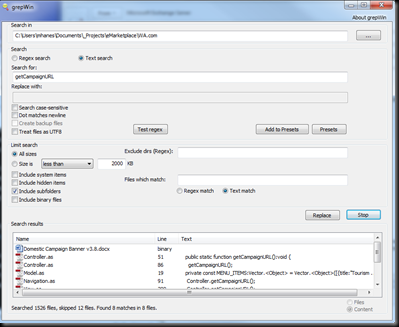
grepWin–A lightweight replacement for Windows Search

I don't know if Windows Search on my Windows Server 2008 R2 machine is crippled because it's a server machine (I'm all set up to run Search) but I invariably have trouble finding strings I know exist in files. In other words, search in files or search in content doesn't seem to work despite my configuration, rebuilding the search index, and pulling my hair out.

Having yet another service running that indexes the majority of the non-system files on my computer also doesn't really appeal and for that reason (among others) I've also decided I don't want to add more search indexing with the likes of Google Desktop Search.

In fact, what I want is a lightweight search application that I can occasionally use with regular expressions. It should be fast and convenient to use, preferably without a command line. I want to be able to specify a start directory and optionally have it search subdirectories and file contents.

And here is a tool that meets all of the above criteria: http://tools.tortoisesvn.net/grepWin.html

(FWIW, this is not an infomercial—I haven no affiliation with Stefan or grepWin and am not paid to write this)

grepWin is 64-bit compatible and Stephan offers an installable version that offers Explorer context menu integration or a portable version that doesn't need to be installed.

There's no indexing involved so you'll likely want to narrow the start location of your search as much as possible but it's still fast.

Your search can be case sensitive or not and you can limit file sizes. A search can also exclude directories.

The results pane lists file details (size, path, date, etc) and also offers a content view so you can preview the match.

Search settings are automatically persisted so using the tool is incredibly convenient.

grepWin

If you found this post helpful, please support my advertisers.

Friday, 3 September 2010

Detection of product '{90140000-104C-0000-1000-0000000FF1CE}', feature 'PeopleILM', component '{1C12B6E6-898C-4D58-9774-AAAFBDFE273C}' failed

After sorting out a problem with the FIM Service not starting automatically after a reboot and several resultant application event log errors, there was one more thing to clean up: running a user profile sync would spit a couple of MsiInstaller warnings about product detection failing (see below).

Various users in the forums suggested granting the Network Service account read access to the C:\Program Files\Microsoft Office Servers\14.0\Service directory and/or the C:\Program Files\Microsoft Office Servers\14.0\Sql directory; I initially found only the latter was required (this directory currently has Read & execute, List folder contents, and Read) but on reboot, the same warnings were logged again. Granting the same access to \Services had the same result and I've found starting a crawl produces these warnings but they go away with subsequent crawls. Reboot and they're back :-(

This change relates to the following warnings logged as a crawl is initialised:

Log Name:      Application
Source:        MsiInstaller
Date:          2/09/2010 3:40:24 PM
Event ID:      1004
Task Category: None
Level:         Warning
Keywords:      Classic
User:          NETWORK SERVICE
Computer:      dev-sps2010-01.dev.mediawhole.com
Description:
Detection of product '{90140000-104C-0000-1000-0000000FF1CE}', feature 'PeopleILM', component '{1C12B6E6-898C-4D58-9774-AAAFBDFE273C}' failed.  The resource 'C:\Program Files\Microsoft Office Servers\14.0\Service\Microsoft.ResourceManagement.Service.exe' does not exist.

Log Name:      Application
Source:        MsiInstaller
Date:          2/09/2010 3:40:24 PM
Event ID:      1001
Task Category: None
Level:         Warning
Keywords:      Classic
User:          NETWORK SERVICE
Computer:      dev-sps2010-01.dev.mediawhole.com
Description:
Detection of product '{90140000-104C-0000-1000-0000000FF1CE}', feature 'PeopleILM' failed during request for component '{9AE4D8E0-D3F6-47A8-8FAE-38496FE32FF5}'

Log Name:      Application
Source:        MsiInstaller
Date:          2/09/2010 3:40:24 PM
Event ID:      1015
Task Category: None
Level:         Warning
Keywords:      Classic
User:          NETWORK SERVICE
Computer:      dev-sps2010-01.dev.mediawhole.com
Description:
Failed to connect to server. Error: 0x80070005

If you found this post helpful, please support my advertisers.

Forefront Identity Manager Service fails to start after reboot

Update [28/09/2010]: Spence recently released a follow-up article to the Rational Guide… in which he discusses an additional change for those of us using SQL Server aliases. Check out the section entitled "Using a SQL Server Named Instance" and scoot down to the local DTC configuration steps. I haven't tried this yet myself but it sounds promising.

Update [27/10/2010]: I see Spence has updated the above-mentioned article to include a section about this problem which validates the solution presented here.

After following Spence Harbar's Rational Guide to implementing SharePoint Server 2010 User Profile Synchronization, I was able to not only get the UPS service started but I was also able to run a sync on my first attempt. I probably got lucky ;-)

The one small hiccup I had along the way was getting the Forefront Identity Manager Service to start following a reboot; the service simply refused to start automatically despite being configured by SharePoint/FIM to do so. Interestingly, both the User Profile Service and the User Profile Synchronization Service items listed in Central Admin's Services on Server page listed the services as running. Starting the FIM Service manually from the Windows Services snapin succeeded (I didn't try directly through CA) but felt hacky and annoying.

What to do? Since the Synchronization Service was starting successfully and I could manually start the service after logging in, I assume this has to be some kind of dependency issue between the services themselves or SQL Server (some of the event log error message listed below definitely take issue with SQL).

Update 29/09/2010: After examining the sequence of event log entries relating to MSSQLSERVER and FIM, I can clearly see SQL is NOT ready to accept client connections by the time the FIM services kick in. I should point out my test environment is running as a single-server farm (AD, SQL, IIS, SharePoint, etc) so I'd definitely pay attention to Spence's follow-up article I note above in the 28/09 update.

My solution was to therefore set both services to start automatically at boot time after a delay by reconfiguring the startup type of BOTH services and Automatic (Delayed Start) in the Windows Services snapin:

FIM-Delayed-Start

Interestingly, I found the FIM Service starts before the FIM Sync Service, fwiw. I also still have one error remaining stating The Forefront Identity Manager Service cannot connect to the SQL Database Server but it doesn't prevent the services from starting or a sync from running.

So is this an inappropriate change to make? I can't say, especially with everyone and their dog saying "let SharePoint manage these services, don't start 'em manually!" In a single-server environment, I'll suggest it is acceptable. I know for certain both services now start automatically after a minute or so (once all other services set to just Automatic have started) and I can still run a profile sync; the following errors are also no longer present:

Log Name:      Application
Source:        Forefront Identity Manager
Date:          3/09/2010 12:37:17 PM
Event ID:      3
Task Category: None
Level:         Error
Keywords:      Classic
User:          N/A
Computer:      dev-sps2010-01.dev.mediawhole.com
Description:
.Net SqlClient Data Provider: System.Data.SqlClient.SqlException: Cannot open database "Sync DB" requested by the login. The login failed.
Login failed for user 'DEV\SVC_SPFARM'.
   at System.Data.SqlClient.SqlInternalConnection.OnError(SqlException exception, Boolean breakConnection)
   at System.Data.SqlClient.TdsParser.ThrowExceptionAndWarning(TdsParserStateObject stateObj)
   at System.Data.SqlClient.TdsParser.Run(RunBehavior runBehavior, SqlCommand cmdHandler, SqlDataReader dataStream, BulkCopySimpleResultSet bulkCopyHandler, TdsParserStateObject stateObj)
   at System.Data.SqlClient.SqlInternalConnectionTds.CompleteLogin(Boolean enlistOK)
   at System.Data.SqlClient.SqlInternalConnectionTds.AttemptOneLogin(ServerInfo serverInfo, String newPassword, Boolean ignoreSniOpenTimeout, Int64 timerExpire, SqlConnection owningObject)
   at System.Data.SqlClient.SqlInternalConnectionTds.LoginNoFailover(String host, String newPassword, Boolean redirectedUserInstance, SqlConnection owningObject, SqlConnectionString connectionOptions, Int64 timerStart)
   at System.Data.SqlClient.SqlInternalConnectionTds.OpenLoginEnlist(SqlConnection owningObject, SqlConnectionString connectionOptions, String newPassword, Boolean redirectedUserInstance)
   at System.Data.SqlClient.SqlInternalConnectionTds..ctor(DbConnectionPoolIdentity identity, SqlConnectionString connectionOptions, Object providerInfo, String newPassword, SqlConnection owningObject, Boolean redirectedUserInstance)
   at System.Data.SqlClient.SqlConnectionFactory.CreateConnection(DbConnectionOptions options, Object poolGroupProviderInfo, DbConnectionPool pool, DbConnection owningConnection)
   at System.Data.ProviderBase.DbConnectionFactory.CreatePooledConnection(DbConnection owningConnection, DbConnectionPool pool, DbConnectionOptions options)
   at System.Data.ProviderBase.DbConnectionPool.CreateObject(DbConnection owningObject)
   at System.Data.ProviderBase.DbConnectionPool.UserCreateRequest(DbConnection owningObject)
   at System.Data.ProviderBase.DbConnectionPool.GetConnection(DbConnection owningObject)
   at System.Data.ProviderBase.DbConnectionFactory.GetConnection(DbConnection owningConnection)
   at System.Data.ProviderBase.DbConnectionClosed.OpenConnection(DbConnection outerConnection, DbConnectionFactory connectionFactory)
   at System.Data.SqlClient.SqlConnection.Open()
   at Microsoft.ResourceManagement.Data.DatabaseConnection.Open(SqlConnection connection)

Log Name:      Application
Source:        Forefront Identity Manager
Date:          3/09/2010 12:37:17 PM
Event ID:      3
Task Category: None
Level:         Error
Keywords:      Classic
User:          N/A
Computer:      dev-sps2010-01.dev.mediawhole.com
Description:
.Net SqlClient Data Provider: System.Data.SqlClient.SqlException: Cannot open database "Sync DB" requested by the login. The login failed.
Login failed for user 'DEV\SVC_SPFARM'.
   at Microsoft.ResourceManagement.Data.Exception.DataAccessExceptionManager.ThrowException(SqlException innerException)
   at Microsoft.ResourceManagement.Data.DatabaseConnection.Open(SqlConnection connection)
   at Microsoft.ResourceManagement.Data.DatabaseConnection.Open(DataStore store)

Log Name:      Application
Source:        Microsoft.ResourceManagement.ServiceHealthSource
Date:          3/09/2010 12:37:17 PM
Event ID:      26
Task Category: None
Level:         Error
Keywords:      Classic
User:          N/A
Computer:      dev-sps2010-01.dev.mediawhole.com
Description:
The Forefront Identity Manager Service was not able to initialize a timer necessary for supporting the execution of workflows.

Upon startup, the Forefront Identity Manager Service must initialize and set a timer to support workflow execution.  If this timer fails to get created, workflows will not run successfully and there is no recovery other than to stop and start the Forefront Identity Manager Service.

Restart the Forefront Identity Manager Service.

Log Name:      Application
Source:        Microsoft.ResourceManagement.ServiceHealthSource
Date:          3/09/2010 12:37:17 PM
Event ID:      2
Task Category: None
Level:         Error
Keywords:      Classic
User:          N/A
Computer:      dev-sps2010-01.dev.mediawhole.com
Description:
The Forefront Identity Manager Service could not bind to its endpoints.  This failure prevents clients from communicating with the Web services.

A most likely cause for the failure is another service, possibly another instance of Forefront Identity Manager Service, has already bound to the endpoint.  Another, less likely cause, is that the account under which the service runs does not have permission to bind to endpoints.

Ensure that no other processes have bound to that endpoint and that the service account has permission to bind endpoints.  Further, check the application configuration file to ensure the Forefront Identity Manager Service is binding to the correct endpoints.

Log Name:      Application
Source:        Forefront Identity Manager
Date:          3/09/2010 12:37:17 PM
Event ID:      3
Task Category: None
Level:         Error
Keywords:      Classic
User:          N/A
Computer:      dev-sps2010-01.dev.mediawhole.com
Description:
.Net SqlClient Data Provider: System.Data.SqlClient.SqlException: Cannot open database "Sync DB" requested by the login. The login failed.
Login failed for user 'DEV\SVC_SPFARM'.
   at Microsoft.ResourceManagement.Data.Exception.DataAccessExceptionManager.ThrowException(SqlException innerException)
   at Microsoft.ResourceManagement.Data.DatabaseConnection.Open(SqlConnection connection)
   at Microsoft.ResourceManagement.Data.DatabaseConnection.Open(DataStore store)
   at Microsoft.ResourceManagement.Data.TransactionAndConnectionScope..ctor(Boolean createTransaction, IsolationLevel isolationLevel, DataStore dataStore)
   at Microsoft.ResourceManagement.Data.TransactionAndConnectionScope..ctor(Boolean createTransaction)
   at Microsoft.ResourceManagement.Data.DataAccess.RegisterService(String hostName)
   at Microsoft.ResourceManagement.Workflow.Hosting.HostActivator.RegisterService(String hostName)
   at Microsoft.ResourceManagement.Workflow.Hosting.HostActivator.Initialize()
   at Microsoft.ResourceManagement.WebServices.ResourceManagementServiceHostFactory.CreateServiceHost(String constructorString, Uri[] baseAddresses)
   at Microsoft.ResourceManagement.WindowsHostService.OnStart(String[] args)

Log Name:      Application
Source:        Microsoft Resource Management Service
Date:          3/09/2010 12:37:17 PM
Event ID:      0
Task Category: None
Level:         Error
Keywords:      Classic
User:          N/A
Computer:      dev-sps2010-01.dev.mediawhole.com
Description:
Service cannot be started. System.Data.SqlClient.SqlException: Cannot open database "Sync DB" requested by the login. The login failed.
Login failed for user 'DEV\SVC_SPFARM'.
   at Microsoft.ResourceManagement.WindowsHostService.OnStart(String[] args)
   at System.ServiceProcess.ServiceBase.ServiceQueuedMainCallback(Object state)

If you found this post helpful, please support my advertisers.

Troubleshooting user profile sync via FIM

Your initial foray into SharePoint 2010 user profile sync will likely lead you to the FIM client and, if you're anything like me, your mind will boggle at what FIM is, why it has to be involved at all, and where to start when things to horribly wrong.

I won't attempt to enlighten you on the first two subjects but I do want to point out some interesting and non-intuitive FIM user interface screens you may not be aware of and that will help you determine if your UPS setup is on the right path. By the way, you can run the FIM client as soon as the two FIM services are running on your machine (in other words, as soon as UPS has been provisioned but before you run a sync).

If you've got the UPS service in a running state, the next thing you'll likely want to do is run your first (or 50th) sync; in addition to the dodgy status screen within Central Admin itself, you can fire up the FIM client to watch from the bushes (the Operations view) as SharePoint, FIM, SQL Server, and AD do their magic dance. A successful run includes ten operations in my dev environment and I've previously posted a screen shot of this if you're interested.

If you look carefully, the operations view will reveal the user name involved with each operation and list some partition info as well. To dive in deeper, click the Management Agents button in the top menu; in my case, I'm presented with three MAs (if you've got more because you've been struggling with connections, you may be in trouble):

  • The first MA named ILMMA connects to the database I specified when setting up UPS ("Sync DB")
  • The second MA named MOSS-{GUID} connects to the ProfileImportExportService web service
  • The final MA named MOSSAD-{name of my connection as configured in CA} connects to Active Directory

FIM MAsBy viewing the properties for each MA (right-click on an MA and select Properties from the context menu or use the Actions pane to the right of the window) I can also examine specific properties to determine exactly what domain name FIM is configured to use and the accounts used to interact with AD, SQL Server, and the web service:

ILMMA-Properties MOSSAD-ConnectionName-Properties MOSSAD-ConnectionName-Directory-Partitions

The attentive reader will note there's a lot of farm account action going on here and that's because both FIM services are configured to log on as the farm account and my understanding is they have to be because of the way the relevant timer job(s), which are also run as the farm account, interact with these services (says Spence). I'll also point out my svc_spups account is the account to which I've granted Replicating Directory Changes in AD.

If you found this post helpful, please support my advertisers.