Showing posts with label Windows. Show all posts

Thursday, 11 October 2018

Kdenlive won’t start on Windows

Trying to run kdenlive.exe on Windows 8.1 was silently failing (no UI error messages, etc). Turns out my antivirus (Avast!) was flagging one of the kdenlive files as a false positive (kioslave.exe) and I needed to add an exception through Avast!’s Virus Chest interface.

This issue was in relation to Kdenlive 18.08.1.

Tuesday, 15 May 2018

Compare the checksum (hash) of a download file

Ever needed to compute the checksum (i.e. the hash) of a file you’ve downloaded from the internet? If not, you probably should—when you can—to ensure the file you’ve downloaded wasn’t tampered with (e.g. to insert malware) or corrupted while it was being downloaded.

As two examples, there are the large files (OS, etc) we download from the trustworthy MSDN library, which may face interruptions during download, and then there are those really handy utilities like WinDirStat that may originate from unsavoury locations on the internet.

Microsoft provides a handy tool for the purpose of computing the cryptographic hash value of one or more files called the File Checksum Integrity Verifier utility. It’s simple to use and can be found here: https://support.microsoft.com/en-au/help/841290/availability-and-description-of-the-file-checksum-integrity-verifier-u

Once extracted, usage is as simple:

fciv myfile.exe

But it can also compute MD5 and/or SHA-1 hashes for a directory of files and store results in a database. Full details can be found at the download link, above.

Sunday, 16 April 2017

How to specify credentials to restart or shutdown a remote host with ‘net use’

I recently wanted to shutdown a server on my local network (notably a workgroup) using the Windows shutdown command but encountered an access denied error (or no feedback whatsoever).

I needed to use the administrator credentials of the remote server but shutdown.exe doesn’t accept credentials.

Using ‘net use’ to connect to the IPC$ share on remote host, you can set then call shutdown in that security context:

net use \\hostname\IPC$ mypassword /User:administrator
shutdown /r /t 60 /m \\hostname /f

In the net use command above, replace hostname with the name of your remote host (or maybe an IP address), replace mypassword with the password for the account you’re using, and replace administrator with the name of the local account on the remote host you wish to use (which presumably has the necessary rights to restart or shutdown the server).

In the shutdown command above, replace hostname with the name of your remote host, as per the net use command.

Note: Read the shutdown /? usage. The /r flag will restart the host; change /r to /s if you want to shutdown instead. Other parameters can also be specified. I also typically set the timeout (/t) flag to 0 (zero).

I call both commands back-to-back in a Windows Command Prompt, without running the console as Admin.

See below for a few more tips, links, and PowerShell alternatives.

If you’re used to operating as a domain user you may be asking why any of this is even necessary. It’s necessary in a workgroup context because the remote host has no idea who I am if I just tell it to shutdown from some other computer on the local IP network. It may be possible to an account on one host the necessary privileges on another host but I don’t know for certain and, in my limited experience, this can get hard and weird very quickly!

I used to run a domain controller on my small local network (just for fun) and all of my servers were members of a domain, which made security easy. I got rid of the DC as DHCP and other services were migrated to my internet router and to streamline things. In all regards, having one less server to manage, power, and so on is great. I’ll run a virtualised AD when I need to, e.g. for development purposes).

In addition to a media centre, I also still run a physical file server, primarily for backups. My basic process is to power on the file server once a week to backup the media centre, my laptop, etc and then shut it down again (so the kids don’t fiddle and to keep the noise down).

The backup process is otherwise seamless—the backup services on the file server and clients just pick up where they left off and run to completion without any human interaction (I use CrashPlan and would highly recommend it). I only need to power on the file server and then shut it down.

To shut down, I’d previously connect to the file server via Remote Desktop and then shut down. But that’s too hard. I can tell from the backup client on my laptop when a backup is complete so I just want to quickly shutdown the file server and go to bed.

In a domain environment, I could make sure my domain account was a member of the Administrators group on the file server and then call shutdown.exe from a command prompt on my laptop; without the DC, I need to explicitly provide shutdown.exe with the necessary credentials before actually calling shutdown.exe.

A few other notes: the file server is running Windows Server 2012 and my laptop is running Windows 8.1.

In recent versions of Windows (i.e. 2012+), I’ve read that UAC may interfere with things. You may want to turn it off but can simply add or configure this registry key (I didn’t have to):

HKEY_LOCAL_MACHINE\SOFTWARE\Microsoft\Windows\CurrentVersion\Policies\System
Value: LocalAccountTokenFilterPolicy
Data: 1 (to disable) or 0 (to enables filtering)
Type: REG_DWORD (32-bit)

You may need to restart after making this change.

Thank to https://helgeklein.com/blog/2011/08/access-denied-trying-to-connect-to-administrative-shares-on-windows-7/ for this one. See also this Microsoft help article (ID 951016) “Description of User Account Control and remote restrictions in Windows Vista”

Others suggested File and Printer sharing must be allowed in the Windows Firewall.

I believe PowerShell offers similar restart (and stop) commands. I haven’t tried them and can’t say whether they work with the techniques described here but I believe both accept a –credential parameter.

See these references:

https://msdn.microsoft.com/en-us/powershell/reference/5.1/microsoft.powershell.management/restart-computer

https://msdn.microsoft.com/en-us/powershell/reference/5.1/microsoft.powershell.management/stop-computer

Sunday, 12 March 2017

Can’t unpin an Office item from the jump list

I recently ran into an issue with a pinned Excel 2016 document that wouldn’t go away. I’d pinned it to the Excel jump list (on the Windows 8.1 task bar) and despite clicking the ‘Unpin from this list’ icon next to the document itself, it was well and truly “stuck”.

pinFolder

I tried simply unpinning the Excel icon from the taskbar but that didn’t help. I installed Windows and Office updates and rebooted but the document kept appearing.

A bit of searching led me to the AutomaticDestinations folder, which can be safely (?) cleared from a command line like so:

del /F /Q %APPDATA%\Microsoft\Windows\Recent\AutomaticDestinations\*

Copy or type the above as one line into a command prompt.

Note this is likely a hidden folder but despite having Explorer configured to show hidden items, I couldn’t see it within the Recent folder.

This command comes from the tutorial (option 3) at https://www.sevenforums.com/tutorials/81483-jump-lists-reset-clear-all-items.html, which also contains a second delete command for CustomDestinations and suggests logging off/rebooting for full effect. I didn’t need to run this second command or reboot. You may find it helpful if the above delete command doesn’t work on its own in your case.

It’s important to be aware your pinned jump lists for other applications will also be cleared, included Explorer.

Wednesday, 14 December 2016

Windows Update errors: WindowsUpdate_80244019 and WindowsUpdate_dt000

In Windows Server 2012 R2 Windows Update recently decided to stop working and referred me to the WindowsUpdate_80244019 and WindowsUpdate_dt000 error codes.

An answers.microsoft.com thread eventually got to the point and my issue was quickly resolved with an ipconfig /flushdns command at the command prompt.

Monday, 18 April 2016

Enabling Windows File History (aka Shadow Copy on Win 8) without an external drive or network drive

After being hit by a crypto/ransomware trojan, I’m looking at all options to make file management and backups easier and automatic. Shadow Copy is mentioned frequently in relation to the crypto locker virus (…in that the virus typically deletes shadow copies…) so I thought I’d look into this Windows feature. I’ve been after a version history, of sorts, for regular file content for a while so this sort of helps.

In Windows 8, Shadow Copy was renamed File History and is switched off by default. To switch it on, you need an external drive or a network location but that’s lame so I sought a workaround to test the waters and get up and running on an internal drive.

This blog post details the steps to set this up, which basically entails creating a virtual drive in Windows Disk Management, initialising it and creating a simple volume, and then pointing File History (via Control Panel) to that VHD.

This is by no means a bulletproof solution and I noticed the crypto virus that attacked my machine also encrypted my virtual machines so this .vhd would not be immune. But it’s about defence in depth, I suppose.

Although I gave the VHD solution a spin, it’s not for everyone and, most importantly, they’re not attached automatically when you reboot (without a startup script, that is). Instead of the VHD approach, I created a new folder to contain my file history, shared it (granting Read and Change share permissions to my Windows account), and then pointed File History the share via \\127.0.0.1\FileHistory [or whatever you name your share].

Update (a few days on): well that didn’t last. File History very quickly consumed all available free space on my internal laptop drive (a second partition). So I’ve turned it off and am using CrashPlan instead (despite the Java dependency—grrrr) as there was no interface to configure how much storage it uses. File History seems to be yet another one of those inane Windows features that is absolutely useless in real life.

Saturday, 8 March 2014

How to configure Hyper-V to use a wireless connection in Windows 8.1

I haven’t used Hyper-V for a while but when I recently built a Windows 8.1 test bed VM I needed a virtualisation platform  and Hyper-V was more or less ready to go within my Windows 8.1 host laptop.

The only hiccup I encountered along the way—and one I was familiar with from my days running Windows Server 2008 on my laptop simply so I could run Hyper-V—was configuring Hyper-V to make use of my laptop’s wireless connection. This time I followed Rick Gipson’s excellent post to get everything working  and I summarise/condense his steps here in the interest of preservation and to document a few notes relevant to my Win 8.1 environment. Check out Rick’s post for screenshots.

  1. Create a new Internal virtual network switch named Virtual WLAN from the Virtual Switch Manager in Hyper-V Manager. A new Unidentified Network connected to vEthernet (External WLAN) will now be visible within the host OS’ Network and Sharing Center. Note I renamed this connection to vEthernet (External WiFi) in Windows to reinforce its relationship to the wireless adapter and differentiated it from the Hyper-V object.
  2. In Hyper-V Manager, configure the target VM’s network adapter to use the newly-created virtual switch (i.e. Virtual WLAN). Note Rick suggested the need to add a new Legacy Network Adapter but I found this was unnecessary.
  3. In the host OS’ Network and Sharing Center, share the host’s physical WiFi adapter by checking the Allow other network users to connect through this computer’s internet connection box and specifying the Home networking connection as vEthernet (External WiFi). Note Rick’s screenshots show the Home networking connection field as a drop-down list but my current configuration displays as a text field. The WiFi adapter should now be listed as Shared in the host OS’ adapter settings.
  4. Start up your guest VM when you’re connected to a wireless and enjoy network connectivity including internet access.
If you found this post helpful, please support my advertisers.

Monday, 2 July 2012

Fixing broken Office 2010 icons

A few weeks back a Windows Update install left my machine hanging and I was forced to reboot even though the screen said 'don't restart or all hell will break loose!' All hell then broke loose.

Or at least the icons for my Office 2010 applications disappeared, having been replaced by the unhelpul default icon.

I don't seem to be the only one to have experienced this exact sequence of events but the usual places for help offered none. There were many suggestions to rebuild icon caches but navigating to the relevant directory in my case revealed it didn't exist. Someone even mentioned a virus uncovered during ten hours of MS support telephoning! I continued hoping Windows Update would come to my rescue with an update for the update but nothing was forthcoming. In fact, I noticed more and more updates were now failing, particularly with error codes 80070643 and 80070644 noted (i.e. during the SP1 update and for a Definition Update).

Worst of all I couldn't initiate an Office repair from the Programs and Features menu—not sure if my machine was in an inconsistent state but opting to Change my install would bring up the Office 2010 change/repair initialisation screen before it would quickly disappear.

Thankfully Hitescape, in one of the many forums I visited, suggested running winword /r from a command prompt fixed the problem for them. Apparently this kicks off the Office repair function. I gave it a go and watched my icons return to their proper place on my task bar one by one! Just for kicks, I then attempted my to install the long list of failed updates and they all went in nicely!

Ps. I should mention I also followed these steps to ‘fix’ my .NET 4 install before I resorted to the above: http://support.microsoft.com/kb/KB976982 No idea if it made any difference.

Btw, I'm running Windows 7 Enterprise x64 with Office 2010 Professional Plus x32 (RTM at the time).
If you found this post helpful, please support my advertisers.

Tuesday, 8 February 2011

Windows Server 2003 x64 on Hyper-V Driver Issues

Installing the 64-bit version of Windows Server 2003 requires service pack 2 and installation of the Hyper-V Integration Services.

Before upgrading RTM and installing the integration services, one of guys was having a bear of a time getting the network  card to appear in the guest.

If you found this post helpful, please support my advertisers.

Tuesday, 21 December 2010

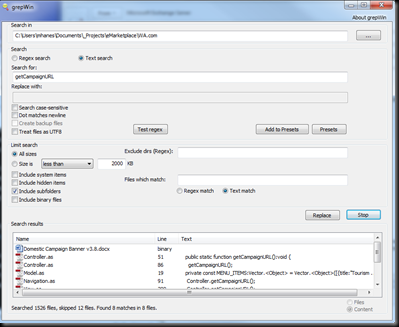
grepWin–A lightweight replacement for Windows Search

I don't know if Windows Search on my Windows Server 2008 R2 machine is crippled because it's a server machine (I'm all set up to run Search) but I invariably have trouble finding strings I know exist in files. In other words, search in files or search in content doesn't seem to work despite my configuration, rebuilding the search index, and pulling my hair out.

Having yet another service running that indexes the majority of the non-system files on my computer also doesn't really appeal and for that reason (among others) I've also decided I don't want to add more search indexing with the likes of Google Desktop Search.

In fact, what I want is a lightweight search application that I can occasionally use with regular expressions. It should be fast and convenient to use, preferably without a command line. I want to be able to specify a start directory and optionally have it search subdirectories and file contents.

And here is a tool that meets all of the above criteria: http://tools.tortoisesvn.net/grepWin.html

(FWIW, this is not an infomercial—I haven no affiliation with Stefan or grepWin and am not paid to write this)

grepWin is 64-bit compatible and Stephan offers an installable version that offers Explorer context menu integration or a portable version that doesn't need to be installed.

There's no indexing involved so you'll likely want to narrow the start location of your search as much as possible but it's still fast.

Your search can be case sensitive or not and you can limit file sizes. A search can also exclude directories.

The results pane lists file details (size, path, date, etc) and also offers a content view so you can preview the match.

Search settings are automatically persisted so using the tool is incredibly convenient.

grepWin

If you found this post helpful, please support my advertisers.

Thursday, 28 October 2010

Free Antivirus for Windows Server 2008

I've been a long time home user of Avast! antivirus. It's a great product that doesn't bog down my machine. Unfortunately the free home edition won't install on Windows Server 2008 R2 and I run a single-boot W2k8 environment because of my Hyper-V love affair.

Don't get me wrong, I normally despise AV and security in any form… the guys I work with are probably fed up with me always shouting "security != productivity" when the bloody proxy policy has once again broken something or prevented me doing my job. But, every now and then, I feel incline to download evil things and God forbid those things include a virus of some kind—a quick scan would then come in handy…

ClamWin to the rescue! Don't know about the name but it doesn't include a real-time scanner which meets my requirements. So far so good… evil things downloaded and appear to be virus free!

Wednesday, 8 September 2010

Exposing the Global Assembly Cache

If you're familiar with the Global Assembly Cache (GAC) you're probably aware there's a special file system viewer thingy (technical term) sitting over top of the GAC contents at c:\windows\assembly; this is a nice convenience when it comes to registering assemblies in the GAC—simply drag and drop, avoiding a trip to the command line and gacutil –i

More often than not, this is all good. When you need to dive into the real GAC, to extract an assembly, drop in debugging symbols, or whatever, you'll quickly realise the viewer is somewhat limiting.

To get past the GAC's outer facade, you've got a few options:

  • From a command line, browse to c:\windows\assembly\gac_msil
  • Map a network drive to \\machine-name\c$\windows\assembly\gac_msil
  • Create a virtual drive: subst z: c:\windows\assembly\gac_msil where 'z:' is any unmapped drive letter
  • Start –> Run c:\windows\assembly\gac_msil
  • Turn off the viewer altogether to browse the GAC directory structure normally within Windows Explorer: create a new DWORD named DisableCacheViewer with a value of 1 below the HKLM\Software\Microsoft\Fusion key

Five ways to do the same thing? Well this is Windows after all—and there are probably more!!! ;)

If you drop the gac_msil bit you'll find there are other directories that make up the GAC proper to explorer but most of what you'll be after resides below gac_msil. Each assembly is represented in by name as a folder with different versions represented as sub folders named as the version number with a GUID appended; the assembly proper will live in one of these folders.

If you found this post helpful, please support my advertisers.

Wednesday, 18 August 2010

Must Have Windows Server 2008 R2 Hyper-V Hotfixes

Now there's a damning blog post title!

In brief, I've had a few issues since installing Windows Server 2008 R2 and adding the Hyper-V Role on my Dell Precision M6500 Core i7 laptop (if you've landed on this post and you don't care about laptops--i.e. you're an admin--don't stop reading now as this post will likely apply to you too). This post is meant to be a running log of problems and their resolutions while we await the next service pack, I suppose.

Problem #1: Blue Screen of Death/random reboots

Resolution:

KB975530: Stop error message on a Windows Server 2008 R2-based computer that has the Hyper-V role installed and that uses one or more Intel CPUs that are code-named Nehalem: "0x00000101 - CLOCK_WATCHDOG_TIMEOUT"

Symptoms, event log entries, and whatnot: Unexpected freezes, BSODs and reboots during periods of high network activity.

  • Event ID 219, The driver \Driver\WUDFRd failed to load for the device USB\VID_0A5C&PID_5800&MI_01\7&66de6c9&0&0001.
  • Event ID 41, The system has rebooted without cleanly shutting down first. This error could be caused if the system stopped responding, crashed, or lost power unexpectedly.
  • Event ID 4, Broadcom NetXtreme 57xx Gigabit Controller: The network link is down.  Check to make sure the network cable is properly connected.
  • Event ID 1001, The computer has rebooted from a bugcheck.  The bugcheck was: 0x00000101 (0x0000000000000019, 0x0000000000000000, 0xfffff880020ce180, 0x0000000000000003). A dump was saved in: C:\Windows\MEMORY.DMP. Report Id: 043010-31168-01.

Apparently this issue is caused by an Intel erratum affecting Nehalem-based processors (i.e. Xeon 5500, Core i7-800, and Core i5-700 series).

Problem #2: Guest VMs freeze, lost connection

Resolution:

None of this worked for me but changing my host power settings from Balanced to High performance did. In theory you should be able to revert to Balanced after installing and the above.

You may also want to investigate turning off TCP offloading.

Symptoms, event log entries, and whatnot: Hyper-V console freezes in some virtual machines but not others (the only one affected in my case was an XP VM upgraded from Virtual PC 2007 SP1), Hyper-V manager reports the Heartbeat as "Lost connection".

  • Event ID 5: The miniport 'Microsoft Virtual Machine Bus Network Adapter #3' hung.

...followed by...

  • Event ID 4: The miniport 'Microsoft Virtual Machine Bus Network Adapter #3' reset.

For additional information about this problem, definitely check out http://social.technet.microsoft.com/Forums/en-US/windowsserver2008r2virtualization/thread/0408a28d-6ab8-4c85-8773-4bc42c2df40b

More to come? Hopefully not! ;-)

If you found this post helpful, please support my advertisers:

Sunday, 1 August 2010

Windows Licensing Details

Windows will report licensing details if you run the following from an elevated console window:

slmgr.vbs /dlv

The Windows Script Host popup will shortly tell you which edition of Windows you're running, which licensing channel you fall under (retail, OEM, volume), your activation ID, license status, rearm counts, and KMS details.

Wednesday, 23 June 2010

Use BackConnectionHostNames instead of DisableLoopbackCheck in production

If you're running SharePoint, you may have come across advice to configure the DisableLoopbackCheck registry key if you're running Windows 2003 SP1 and above and/or .NET 3.5 SP1.

Adding the DWORD will certainly keep you up and running and avoid search/crawl errors like the below but it's not the way to be doing in a production environment, despite popular belief.

Access is denied. Verify that either the Default Content Access Account has access to this repository, or add a crawl rule to crawl this repository. If the repository being crawled is a SharePoint repository, verify that the account you are using has "Full Read" permissions on the SharePoint Web Application being crawled. (The item was deleted because it was either not found or the crawler was denied access to it.)

What you should be doing in production is configuring specific sites by name using the BackConnectionHostNames Multi-String Value below HKEY_LM\system\CurrentControlSet\Control\LSA\MSV1.0. The Microsoft KB article isn't clear about the format this value should take but I've found adding each site without the scheme on a new line works.

Here's an example:

intranet1.site.com
intranet2.site.com

Bob Fox additionally suggests adding a new DWORD named DisableStrictNameChecking with a value of 1 to HKEY_LM\system\CurrentControlSet\Services\Lanmanserver\parameters and rebooting to avoid having to reboot every time a new site is configured. I got away without rebooting at all by simply restarting the IISAdmin service.

Wednesday, 20 January 2010

SharePoint 2007 Slipstreamed Installer

I hadn’t noticed previously but Microsoft released slipstreamed SP2 installers (x86 and x64) at the end of 2009:

http://www.microsoft.com/downloads/details.aspx?FamilyId=3015FDE4-85F6-4CBC-812D-55701FBFB563&displaylang=en

http://www.microsoft.com/downloads/details.aspx?familyid=2e6e5a9c-ebf6-4f7f-8467-f4de6bd6b831&displaylang=en

Makes life a little bit easier so you don’t have to do the slipstreaming yourself. Apparently previous installers will not work with Windows Server 2008 R2.

Tuesday, 12 January 2010

Can’t start Hyper-V VM after Windows Server 2008 R2 upgrade

Oh the tedium… Having used Windows Server 2008 R2 for a while, I was keen to upgrade the Hyper-V host environment supporting my dev infrastructure from RTM to R2. R2 seems faster and more refined; I was also wanting to play with the latest version of the System Center Virtual Machine Manager—which requires R2.

The upgrade process went smoothly once I figured out the installer would eventually present me with the upgrade option after telling it to install the Windows Server 2008 R2 Standard (Full Installation) option; this was briefly confusing to me  since I didn’t want to do a full installation! I shut down all my VMs properly beforehand and everything seemed pretty much good (I did have to recreate the one VM I normally auto-start but luckily I was able to reuse the .vhd itself and the machine came back to life with little hassle).

Today, however, I went to create a new VM but was unable to start it post-creation. Clicking start popped up a message telling me the VM could not initialize and Hyper-V could not create or access saved state file. The physical location of my VMs hadn’t changed but I read this error message as a permissions issue—but where to start?! The only thing I had to go on was that I was creating the new VM on another volume.

Fortunately Jevgenij Martynenko saved the day for myself and others in this forum post with the old trick of granting access to the root of the drive. I remember having to do this for ASP.NET back in the day for some reason…

Anyway, as per the instructions, I granted ‘Authenticated Users’ ‘List folder / read data’ permission to the root of my E:\ drive, setting the scope drop down to This folder only. I did not replace all child object permissions as apparently that causes more problems.

Starting the new VM was successful after this change.

Windows Server 2008 R2 Scratch Disk

When building out a new VM I’ve occasionally created a second disk for holding non-system files and temporary data; this disk is easy to blow away every so often and saves the hassles of defragging and compressing.

I recently built a Windows Server 2008 R2 VM and created a system drive and secondary drive in Hyper-V manager before installing the OS. During the OS installation process, I created a new partition and noticed—but thought nothing of—the fact the installer didn’t nag me about creating a reserved system partition as well.

Carrying on my merry way, I eventually found the secret system reserved partition on my “scratch” disk (d:\) when I went to format what I expected was a completely unallocated disk. Bummer—I’m not clear on the ramifications of simply deleting this reserved partition but it currently means dragging around an additional 6GB of D: drive and being unable to blow away my scratch disk.

Monday, 4 January 2010

Enable ICMP echo (ping) in Windows Server 2008 R2

Windows Server 2008 won’t respond to ping requests out of the box—they’re blocked by default in the Windows Firewall ruleset. In the pre-R2 days, I used a simple command to enable ping in my development environments but apparently netsh firewall has been deprecated:

netsh firewall set icmpsetting 8

The replacement is—wait for it—netsh advfirewall firewall, like so:

netsh advfirewall firewall add rule name=”ICMP Allow incoming V4 echo request” protocol=icmpv4:8,any dir=in action=allow

Richard Siddaway has a PowerShell equivalent (presumably, I haven’t tried it myself but should have, I know… tsk, tsk).


Wednesday, 2 December 2009

Failure serving a file with a percentage character in the file name

An unexpected 404 error cropped up today while attempting to serve an image file with a percentage character in the file name. Windows has no issues with percentages but apparently IIS or something else in the pipeline refused to serve this file. Interestingly, the '%' character URL-encodes as '%25'... go figure.