Showing posts with label Tools. Show all posts

Thursday, 28 May 2015

Windows Live Writer and Blogger returned the following error: Notfound: not found

Ah Windows Live Writer--you've been there all along and now you're not working because Google ended support for ClientLogin OAuth 1 (3LO), AuthSub, and OpenID2. Great for Google, no doubt, not so great for the thousands of users still clinging to WLW.

Microsoft insiders (Scott Hanselman) are talking about open sourcing Windows Live Writer, which would be great as the application hasn't seen any major updates since the 2012 product release. Hanselman has also suggested a fix may be a while off--in the hands of the open source community. 

Apparently Google is also considering a fix at their end, which would be great to keep us bloggers running in the meantime: https://plus.google.com/u/0/+RickDoyle/posts/GUPJcu5sZHo

Update: a few workarounds have popped up around the web:
  1. View source in WLW and copy/paste into Blogger (web). See http://mybeerbuzz.blogspot.com.au/2015/05/blogger-windows-live-writer-blogger.html
  2. Configure posting by email. See http://www.hackinguniversity.in/2015/05/live-writer-not-found-error.html
Update 2 (3 June 2015): seems to be working again as expected :-)

If you found this post helpful, please support my advertisers.

Sunday, 15 March 2015

Infix PDF Editor Pro Review

I may have finally found a fully-featured desktop PDF editor that won’t blow the budget (hence this review: Iceni Technology offer a free license for promoting the Infix product). I’m referring to Infix PDF Editor from Iceni Technology.

In the last few years I’ve committed to reducing the volume of physical paper in my house and to that end, I’m scanning existing documents to PDF. As my multifunction device only scans single-sided, I have a need to merge PDFs and reorder pages, at a minimum. On occasion I’ve also had a need to edit the PDF content—the text within the PDF.

To date, I’ve used a hybrid  solution for manipulating PDFs including the CutePDF Writer to print documents from other applications to PDF and the free, online CutePDF Editor for manipulating and combining PDFs. Although the Cute printer is great, the Editor product is painfully slow, especially when reordering pages and joining PDFs. Plus, I’m not terribly comfortable uploading sensitive (private) PDF documents to an unknown web server.

The obvious benchmark for PDF editing is Adobe’s Acrobat and I installed a trial version of the Acrobat XI product. It worked amazingly but the price tag is also amazing—over $400.

Finally, I’ve integrated third-party PDF solutions into my web applications in the past, notably WebSupergoo’s ABCpdf.NET product. I was literally just about to write my own PDF editor using their product when they pointed me to Infix.

I’ve previously searched high and low for free PDF editors (open source or otherwise) but found very few products that meet my primary requirements:

  • Desktop-based for performance and security reasons
  • The ability to merge PDF documents
  • The ability to reorder PDF documents (preferably graphically)
  • No watermark
  • No dodgy adware or crapware

Most of the merge and reordering features I require aren’t available in freebie products. The closest thing I’ve found previously was a product called PDFill, which works but is really only a basic Windows application with a fairly painful UI.

Enter Infix Pro (v6.36). The Professional pricing is $159, I see and the evaluation version will, unfortunately, watermark your files. For promoting the product, however, you’re eligible for a free license.

I’ll reserve final judgement about the watermark until I’ve received my free license but from the evaluation I can see all of the requirements I list above are met.

The application is an .exe install that installed no other programs as far as I can see. No browser extensions or toolbars, no random stuff. I wasn’t prompted to install anything else either. The download was not quite 60MB and the application itself is responsive and fairly intuitive. I’ve read other reviewer’s comments about the toolbars being of the older Windows style (not a ribbon) but the application still works fine and most functions are easy to find and use.

Merging two (or more) documents is easy and I was surprised that by default the program allows me select other file types (as in not PDFs). I tried to join a .tiff to a PDF but this failed, understandably, with an appropriate error message that I was trying to merge a file that isn’t a PDF. I have tried merging other file types.

Reordering is semi-graphical: you can’t drag and drop pages to reorder them but you make a current selection and then reorder through the Document > Pages > Re-order menu. There is no shortcut noted for this operation and right-clicking on the current page itself or the thumbnail offers no option to reorder the page. In short, reordering multiple pages might get a bit painful but at least it’s quicker than the slow, web-based CutePDF Editor I’m used to.

I’ll be giving this product a thorough workout once I can get rid of the watermark but so far it looks like a pretty good bet.

Tuesday, 8 February 2011

Inspecting video and audio files

I've been using a handy little tool called MediaInfo to inspect some of the .flv files we display in the westernaustralia.com banner space and diagnose encoding differences.

The free tool displays all sorts of information about the audio and video streams:

MediaInfo

If you found this post helpful, please support my advertisers.

Tuesday, 21 December 2010

grepWin–A lightweight replacement for Windows Search

I don't know if Windows Search on my Windows Server 2008 R2 machine is crippled because it's a server machine (I'm all set up to run Search) but I invariably have trouble finding strings I know exist in files. In other words, search in files or search in content doesn't seem to work despite my configuration, rebuilding the search index, and pulling my hair out.

Having yet another service running that indexes the majority of the non-system files on my computer also doesn't really appeal and for that reason (among others) I've also decided I don't want to add more search indexing with the likes of Google Desktop Search.

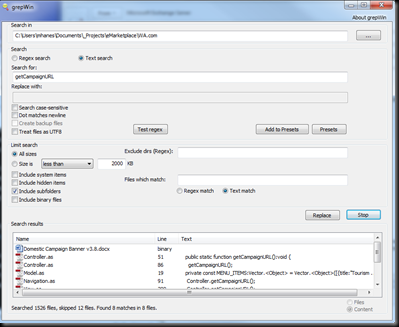
In fact, what I want is a lightweight search application that I can occasionally use with regular expressions. It should be fast and convenient to use, preferably without a command line. I want to be able to specify a start directory and optionally have it search subdirectories and file contents.

And here is a tool that meets all of the above criteria: http://tools.tortoisesvn.net/grepWin.html

(FWIW, this is not an infomercial—I haven no affiliation with Stefan or grepWin and am not paid to write this)

grepWin is 64-bit compatible and Stephan offers an installable version that offers Explorer context menu integration or a portable version that doesn't need to be installed.

There's no indexing involved so you'll likely want to narrow the start location of your search as much as possible but it's still fast.

Your search can be case sensitive or not and you can limit file sizes. A search can also exclude directories.

The results pane lists file details (size, path, date, etc) and also offers a content view so you can preview the match.

Search settings are automatically persisted so using the tool is incredibly convenient.

grepWin

If you found this post helpful, please support my advertisers.

Wednesday, 28 July 2010

Visual Studio 2010 Remote Debugger Location

You'll find the VS 2010 remote debugger a similar location to that of the 2005/2008 debuggers:

C:\Program Files (x86)\Microsoft Visual Studio 10.0\Common7\IDE\Remote Debugger

Note VS2010 is still a 32-bit app so if you're running a 64-bit OS, you'll need to be looking in the Program Files (x86) directory. The debugger itself comes in both x86 and x64 flavours.

To install, I normally just copy the relevant architecture folder to the remote server. Run msvsmon.exe and assuming you're otherwise setup for remote debugging, it should be same as previous versions of Visual Studio!

Ps. You can also download the remote debugger from Microsoft.
Pps. I normally add msvsmon to the Windows Startup folder so it starts whenever I boot my remote dev environment (I've found I previously had to log on to the server, however, and two users can't run the monitor simultaneously on the same server). Apparently the 2010 monitor can be run as a service—not sure if this was the case for previous versions.

Sunday, 4 April 2010

Flatten XML files with the XML Flattener

Have you ever needed to “flatten” a pretty-printed XML file for pasting into a web service test page? XmlSpy and the like will happily display ugly XML in a nicely-indented format but the version I have doesn’t un-pretty-print (or flatten) XML for me.

Custom tool to the rescue! Announcing my very first codeplex project and the XML Flattener!

This first alpha release is a simple WinForms apps with zero error handling and very limited capabilities allowing you paste in an XML document, flatten it, and copy out the flattened string. The hard work is accomplished by—wait for it—leveraging the default formatting of the XmlDocument’s OuterXml property (which isn’t formatted, unlike other XML-related classes which do return formatted documents).

XML FlattenerFYI I built this app years ago when I was doing a lot of web service integration work so it’s a fairly naive tool built primarily for testing web services. It’s original title was The XML Bastardiser but I’ve attempted to make the name a bit more relevant with this first public release ;-)

Enjoy!

Thursday, 24 December 2009

Installing Live Mesh Beta on Windows Server 2008 R2

It’s never easy… the downloader doesn’t seem to work from the web or somesuch, or at the very least not with Windows Server 2008 R2; running locally spits out an error about local policy not allowing the installer to run.

To work around this, add a new key named Installer below

HKEY_LOCAL_MACHINE\Software\Policies\Microsoft\Windows\Installer

and then create a DWORD named DisableMSI. Set the value to 0.

In my case I’d already downloaded the installer so I ran it locally, no change to UAC, no reboot, no –force switch on the installer. I’m meshed.

http://msdn.microsoft.com/en-us/library/aa368304(VS.85).aspx

Ps. I deleted the key after install but it’s probably not necessary to do so.

Wednesday, 28 October 2009

Activating a feature containing a content type generated from Andrew Connell's stsadm commands generates 100% CPU load

I've used AC's WCM Custom Commands for STSADM successfully in the past and they're extremely handy. In short, I create my site columns and content types in the SharePoint UI and then run Andrew's GenSiteColumnsXml and GenContentTypesXml to dump the XML required for incorporation in a feature. Today I hit a wee snag when attempting to activate a feature containing fields and content types generated from these commands: the operation wouldn't complete until terminated forcefully and the CPU was meanwhile running at 100% (infinite loop anyone?).

Luckily JoeB came across the same problem in the past and was kind enough to post his fix in the comments on Andrew's blog (although I also noticed another commenter noted the issue in production after implementing JoeB's fix...). Andrew says these commands were built using the 80-20 rule: they'll get you 80% of the way there and you're on for the rest. Fair enough—the commands are extremely handy and I reckon they go well beyond the 80% mark. That said, these are some of the things I fix up after generating the output; I'll list JoeB's fix here too:

Fields

This makes updating the feature easier:

  • Add the DisplaceOnUpgrade="TRUE" attribute

I've read these aren't meant to be included explicitly but the documentation, useful as it is, indicates they're optional anyway:

  • Remove the SourceId attribute
  • Remove the StaticName attribute

These can go without any consequence I've noticed:

  • Remove the Version attribute
  • Remove the Required="FALSE" attribute

These seem to come out if you muck around with the fields too much in the UI:

  • Remove the PITarget attribute
  • Remove the PrimaryPITarget attribute
  • Remove the PIAttribute
  • Remove the PrimaryPIAttribute
  • Remove the Aggregation attribute
  • Remove the Node attribute
  • Remove the ContentType field altogether (SharePoint Manager 2007 indicates it's added automatically even if not specified)

Content Types

JoeB's fix to the 100% CPU issue:

  • Add NamespaceURI="http://schemas.microsoft.com/sharepoint/v3/contenttype/forms" to the XmlDocument element

(Note you may also be able to remove the XmlDocuments node altogether).

Wednesday, 30 September 2009

Web site performance monitoring tools

Having gone through the pains of learning about web site performance and applying that understanding to a MOSS site (www.westernaustralia.com), the latest post on the SharePoint Team Blog about optimising sharepoint.microsoft.com caught my eye. I’ve been meaning to cover the performance nitty gritty from our experience for ages now but, for the moment, suffice it to say we fixed most of the problems faced by our global audience and now use a commercial performance monitoring service called Gomez to keep an eye on things. Gomez competes with the likes of Keynote if you’re in the market.

Commercial solutions like this cost a lot of money because they’re essentially distributing test agents all around the world and measuring full page load times from your site at a configurable interval. Response metrics are stored for trending analysis and comparison with other sites. Despite the cost, these tools are worth the money if you know your site is experiencing performance issues (if not the data gets boring really fast).

Firebug, YSlow, and Fiddler are great tools for analysing performance and will give you both page load time and page weight but they’re all executing from your desk; if your web server is down the hall or in the same city (or country) you may not have a clear picture of how latency is affecting your site users on the other side of the world. If you’re targeting a domestic audience that’s obviously not a problem but if you’re targeting a global user base and you’re attempting to do so with SharePoint you need to ensure everything about your site is optimised—not just just the server configuration. The SharePoint Team Blog post highlights the fact SharePoint (MOSS 2007) is not optimised for internet sites out of the box.

As the cost of these performance measurement services is prohibitive—especially in this tough economy, it’s interesting to see where the free services are going feature-wise. I mention the SharePoint Team Blog post specifically because the author cites a new tool I hadn’t yet come across: http://www.webpagetest.org/ I’ve previously evaluated Pingdom but their offering was still developing a year ago (they offer both free and paid services).

The webpagetest.org site is painful on the eyes but the data they provide at no cost is comprehensive. The site currently allows you run tests from one of three nodes (the US, UK, and New Zealand), meaning an adequate global coverage (we test westernaustralia.com from seven locations matching the site’s target markets).

The tool reports the results from a full page test, meaning the page and all of it’s supporting resources are requested, providing a realistic picture of how long it takes to load the page and all CSS/Javascript/images/XML files/Flash files/etc. Some of the freebie offering I’ve seen in the past only reported the page HTML load time, which will often be negligible.

In addition to giving you a screenshot of the page, which is often useful to compare what the world sees versus what you think they’re seeing, you get full waterfalls of data for a first visit and what they call a repeat view (a subsequent request for the same page with a primed browser cache), and an item by item optimisation checklist.

webpagetest waterfall and optimisation

I’m impressed!