Showing posts with label MOSS. Show all posts

Wednesday, 17 November 2010

SPSite.AllWebs vs SPWeb.Webs

There's a subtle distinction between SPSite.AllWebs and SPWeb.Webs to be aware of—and yes, despite this being the SharePoint API we're talking about, it's more than just a naming oddity!

SPSite.AllWebs returns the immediate child webs of the site collection and all of their child webs (in other words, all webs recursively within the site collection); SPWeb.Webs has a much narrower scope and only returns the first level child webs immediately below the SPWeb object.

So what does this mean and how does it benefit you? If you're writing code that recursively walks the site hierarchy using SPWeb.Webs, you may be able to avoid the overhead by simply using SPSite.AllWebs. Recursion is fun and all but it adds complexity where it may not be warranted.

If you found this post helpful, please support my advertisers.

Thursday, 14 October 2010

The Mysterious SourceID Attribute

I see a lot field definitions around that unnecessarily include a SourceID attribute:

<Field
SourceID="http://schemas.microsoft.com/sharepoint/v3"

More often than not, the value of this attribute is set as above. Microsoft's own documentation samples tend to include this attribute.

So what does it do? Not a lot as far as I can tell; I don't include it with my own field definitions because inspecting the field after deployment with SharePoint Manager proves SharePoint sets it automatically with the GUID of the list that created the field. The Field Element documentation also indicates it is optional.

If you're intent on using it, the documentation describes this attribute as "containing the namespace that defines the field, such as http://schemas.microsoft.com/sharepoint/v3" so rather than use the default namespace it may be advisable to use your own (I haven't tried this myself).

If you found this post helpful, please support my advertisers.

Thursday, 12 August 2010

Configuring the People Picker and No exact match was found

SharePoint's people picker is generally one of those things that just kind of works—and fairly well no less. There's a gotcha to that statement however: the people picker works well when the the SharePoint farm exists in the same domain as the users you want to match against, or exists in a second domain where a two-way trust has been established with the first domain.

SharePoint-People-Picker

If your SharePoint web frontends exist in another domain with a one-way trust, you've got some extra work to do. This is the case with our dev setup and DMZ setup: our dev VMs are joined to the dev domain which trusts the corporate domain and our production servers are similarly joined to a web domain that also trusts the corporate domain. Both trusts are one-way.

I'll simplify what needs to be done by stating you simply need to tell SharePoint which forests or domains house the users you're after and provide an account from that domain.

Firstly you'll need to provide a key that will be used to encrypt any passwords you plug in during the next step. Run this on every WFE where "key" is a string of your choosing:

STSADM.exe -o setapppassword -password key

Next, set the peoplepicker-searchadforests property:

STSADM.exe -o setproperty-propertyname peoplepicker-searchadforests -propertyvalue <Valid list of forests or domains> -url <URL of the Web application>

where <Valid list of forests or domains> might look like this:

"domain:mydomain.com,mydomain\myuser,mypassword"

Supply the URL of the web application you want to configure (and note you don't need to set this for Central Admin, set it for a specific web application). Multiple domains and forests can be listed if necessary.

For more information, check out these resources:

 
If you found this post helpful, please support my advertisers:

Saturday, 19 June 2010

Don't use XmlRoot with .webpart files

Just noticed using an [XmlRoot("MyRoot")] attribute on my webpart class in conjunction with a .webpart file (as opposed to a .dwp file) gives me this error when attempting to add the webpart to a page:

Incompatible Web Part markup detected. Use *.dwp Web Part XML instead of *.webpart Web Part XML.

Incompatible_web_part_markup_detected

Well I don't want to use *.dwp Web Part XML so I removed the XmlRoot attribute instead. I'm feeling wild, you see.

Beware the old doco: http://msdn.microsoft.com/en-us/library/dd584160(office.11).aspx 

Thursday, 22 April 2010

Failure trying to synch web application and A duplicate site ID was found

If you’re shunting SharePoint content databases around between environments using the stsadm deletecontentdb and addcontentdb commands, you may find a couple of new errors in your events logs:

Failure trying to synch web application {guid}, ContentDB {guid}  Exception message was A duplicate site ID {guid}(http://yoursite) was found. This might be caused by restoring a content database from one server farm into a different server farm without first removing the original database and then running stsadm -o preparetomove. If this is the cause, the stsadm -o preparetomove command can be used with the -OldContentDB command line option to resolve this issue.

followed by:

A runtime exception was detected. Details follow.
Message: A duplicate site ID {guid}(http://yoursite) was found. This might be caused by restoring a content database from one server farm into a different server farm without first removing the original database and then running stsadm -o preparetomove. If this is the cause, the stsadm -o preparetomove command can be used with the -OldContentDB command line option to resolve this issue.

After restoring a production content database to my dev environment, I was finding these two errors every hour on the dot.

Importantly—and despite what this error message notes as a possible cause—Todd Carter details why you shouldn’t be using stsadm preparetomove in a modern (post-IU) SharePoint environment. It seems like preparetomove actually fixed up some GUIDs before a detach/attach operation and it’s still documented with no warnings on Technet but hey, there’s something to be said for collective community wisdom when it comes to Sharepoint ;)

The problem itself seems to lie with SharePoint’s inability to update database IDs during the detach/attach process and (possibly) the fact the content database consumes an SSP. I’m a bit unclear on how the Infrastructure Update may have addressed this but at the end of the day I just want a clean event log and stable environment.

To correct this problem and clear both error messages, I ran the following stsadm command:

stsadm –o sync –DeleteOldDatabases 0

Despite it’s name, the DeleteOldDatabaes parameter doesn’t delete databases, only the “old records corresponding to these databases.” The zero value instructs the command to delete all records that have not been synchronized for the specified number of days. For a report of what might be cleaned up, run stsadm –o sync –ListOldDatabases 5 first.

Monday, 19 April 2010

No parameterless constructor defined for this object when creating a new page

With everything working admirably in development I was greeted with the below error message when attempting to create a new page after today’s fresh deploy to UAT (and eventually prod, where I gave up):

Error No parameterless constructor defined for this object

No fun but luckily the problem was easily isolated and a work around arrived at—although I have yet to unearth the root cause.

By way of more detail, I was attempting to create a new page instance in a new sub site using a branded master page and page layout. This isn’t normally a problem and seems to be limited to this master page/layout combo as I can successfully create page instances in the same sub site using another layout known to be good. The problematic page layout contains a single rich text field and webpartzone but, unlike other posts discussing the same error message, the <zonetemplate> element is empty and I’m not attempting to deploy web parts to the page using the AllUsersWebPart crappiness. I just want my basic page!!

Most of the suggestions out there for resolving the above error lead you to the web part editor maintenance screen (see below) where you’ll find one or more ErrorWebParts, which can then be deleted. The problem with this approach is maintaining the page’s web parts requires the page layout to be checked out and that customises the layout, meaning future feature-based deployments of that layout won’t “take”. Of course, my layout isn’t supposed to have any web parts so go figure where the single mysterious ErrorWebPart originates… there seems to be a (related?) issue accessing web part programmatically in which ErrorWebParts objects are returned instead so I wonder if this is a different web part than how it’s represented…

Others suggest redeploying the layout after deleting it from the gallery but that didn’t work in my case.

In the end, I created a page from a different layout using the same content type as my desired page and then changing the layout. All fine from there but not at all usable—luckily this was for a short-lived campaign site.

How to open a page layout in web part maintenance mode

Just as a page instance can have web parts, a page layout can also have web parts. To manage those web parts, check out the layout within the Master Page Gallery, and click View Properties from the context menu. Next, edit the item and click the ‘Open Web Part Page in maintenance view’ link at the bottom of the page.

Alternatively, you can substitute your page layout in this URL:

http://<server>/_catalogs/masterpage/<page layout name>.aspx?contents=1

Thursday, 8 April 2010

stsadm –o activatefeature –force suppresses error messages

Oh the pain: your solution builds and deploys with no error messages but something’s awry, your feature files are where they need to be in the .wsp/.cab and the target file system but SharePoint is none the wiser. So you lather, rinse and repeat (er, rebuild, redeploy, re-activate) to no avail; everything’s working yet nothing’s working!

We have our stsadm –o activatefeature commands tucked away in our deployment scripts and they just happen to use the –force parameter. This is normally fine, except when the feature breaks; in this case the feature is still force activated—as requested—but error messages are suppressed… in other words everything seems okay but it’s all really all horribly wrong. Even the event log is clean as a whistle.

So to figure out what’s going on, drop the –force attribute (you may need to deactivate the feature manually first), and reactivate. Behold the error message in all its glory.

Wednesday, 10 February 2010

SharePoint 404: The resource cannot be found

If a page element is missing—either a user control hasn’t been deployed or something else that needs to be in place for the page to compile dynamically is awol—you might be the proud owner of a 404 even though the page itself does exist.

HTTP 404. The resource you are looking for (or one of its dependencies) could have been removed, had its name changed, or is temporarily unavailable.  Please review the following URL and make sure that it is spelled correctly.

After setting the SafeMode element’s CallStack element true in web.config, turning off CustomErrors, and setting the debug=”true” attribute on the compilation element, you’re possibly looking at a beautiful ASP.NET error message with no stack trace and not a lot to go on.

Well here’s a trick: view source on the error page and and scroll down below the closing HTML tag. Behold the stack trace! It should tell you exactly where to look for the problem.

Tuesday, 9 February 2010

westernaustralia.com Relaunch and Other Website Recent Activities

If you’ve been following the progress of the westernaustralia.com website over the years, you’ll already know the site was one of the first in Australia to be launched on the MOSS 2007 platform and has been consistently voted as one of the top fully branded SharePoint sites in the world ever since. Having worked on the site since the get-go and as the current technical lead for the project, I’m the proud owner of the site’s programmatic aspects; today I’m tickled pink to tell you, the SharePoint community, about yesterday’s launch of the new Tourism Western Australia brand, Experience Extraordinary, and, more specifically, the brand’s impact on the westernaustralia.com website.

At the moment we’re working with the Digital Marketing team on a two (or three phase) approach (depending on how you look at it) to implement the new brand. The first phase unfolded in August last year and involved the neutralisation of the preceding brand’s elements (The Real Thing) while the latest creative design agency, Host, was appointed. Phase 1 of the new brand implementation kicked off in the dev team a little over three weeks back and involved making the Photoshop mockups provided by Host into a living website. This work focused largely on the page banners (vibrant imagery, the tab, and extra height), the navigation, the background colour (trust me—everything is more complicated than you might think at first glance with wa.com!), what we call the ePostcards element, and the footer elements.

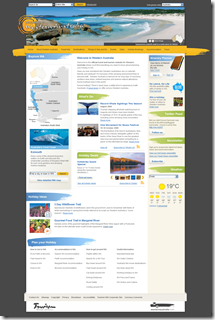
Here’s a picture of what I think is a visually stunning website and a vast improvement over its predecessor:

wacom homepage 4 Experience Extraordinary Phase 1

Phase 2 holds still more secrets but you can bet we’ll be making all the middle bits fit with the rest of the changes. One of the challenges we’ll be facing is getting the home page weight down from a whopping 1750KB and 100 requests. Stunning, certainly, but our CDN of choice (Akamai) allows us to get away with this sort of monkey business.

In addition to all the glam, we also took the opportunity to overhaul the heading infrastructure. This subsystem is designed to give content editors the ability to upload new banner images and all of the corresponding display data required to render the Flash banner. The Flash banner itself was built by Host from our previous banner and it takes as a parameter an XML file providing all the information it needs to display the banner images, text, links, and colours.

Obviously this data is stored in a list to which the FlashBanner.cs web part communicates at render time. Like I say, nothing in wa.com is as it first appears and one of the more complex requirements was allowing a subsite to override the banners displayed for for it and its children (in effect to support the major subsections of the site such as the destinations). Apart from simply walking up the site hierarchy recursively until a banner list is found, we then needed interrogate the list and emit an XML file acceptable to the banner; the URL to the file is finally cached with a dependency on the file itself.

Interestingly, this was one of the first times we started using event receivers on the banner lists to invalidate the cache when a banner is added, edited, or deleted; this keeps the content editors happy and productive and is one less of those annoying “is my banner cached in the browser cache | Akamai | reverse proxy| application cache | output cache | blob cache?” questions ;)

I’ll also point out we’re using a simple custom list for this instead of a picture library or custom list derived from a picture library. The previous version of this list was in fact a custom picture library but it suffered from broken thumbnails (which we now know how to fix) and proved rather cumbersome to use in practice (no reordering, a difficult view, etc). The move away from the picture library wasn’t, in retrospect, necessarily a great decision but it was probably the best decision at the time and came with considerable deliberation. The one major problem with the current approach is banner images must be uploaded separately to a real picture library and then referenced from the list; this is a bit of a double-up and disconnects the image itself from its metadata. As our understanding of list development and the peculiarities of these other list types increases, we may revisit this approach.

Also at a technical level, we recently move the site from our old IBM BladeCenter kit running Windows Server 2003 x86, MOSS 2007 SP1 (not even the Infrastructure Updates—gasp!), .NET 3.0, and a non-clustered SQL Server 2005 x86 database server. Everything was virtualised on ESX 4.0. We actually had three of these farms: one in prod, one in DR, and one for authoring; as content deployment never worked for the site, this meant a daily backup and restore of the content database from authoring to production and corresponding switch to or from DR (with DR actually being treated as a standby prod environment). That must have really sucked for our admin who had did that essentially manual task every business day since launch in May 2007. What. A. Drag.

From that setup, we moved to what was briefly the bees knees: Windows Server 2008 x64, MOSS 2007 SP2 + June 2009 CU, .NET 3.5 SP1, and a clustered SQL Server 2008 x64 database environment. Everything is still virtualised on ESX 4.0 and the entire setup is mirrored in DR. We’ve finally done away with the authoring farm so content editors are editing content in the production farm (we’re working towards a tiered security design and approval workflows, by the way, but our content editors have been working with the environment for years now and are mature in their understanding of how not to break the site ;). So no more daily content deployments and those of us in the dev team can finally start working with .NET 3.5 and LINQ.

For more on how we run the site, check out my Perth SharePoint User Group presentations and videos (things have changed but not that much):

http://blog.mediawhole.com/2009/02/how-we-do-wcm-at-tourism-wa-im-speaking.html

http://blog.mediawhole.com/2009/03/presenting-at-next-sharepoint-user.html

If you’ve read this far, you deserve the chance to win a prize. Want the opportunity to take an extraordinary taxi ride around the state of Western Australia? If so, check out the “brand activation” microsite: http://www.extraordinarytaxiride.com.au/

Note: I am employed by Tourism WA as a contractor working for Diversus. Mediawhole, mediawhole.com, and this blog are not associated directly with Tourism Western Australia or the westernaustralia.com website. The information provided above  is published independently as a member of the public and does not reflect the views of Tourism Western Australia or Diversus. Please consult a Tourism WA representative for more information about its brand, campaigns, and websites.

Wednesday, 20 January 2010

SharePoint 2007 Slipstreamed Installer

I hadn’t noticed previously but Microsoft released slipstreamed SP2 installers (x86 and x64) at the end of 2009:

http://www.microsoft.com/downloads/details.aspx?FamilyId=3015FDE4-85F6-4CBC-812D-55701FBFB563&displaylang=en

http://www.microsoft.com/downloads/details.aspx?familyid=2e6e5a9c-ebf6-4f7f-8467-f4de6bd6b831&displaylang=en

Makes life a little bit easier so you don’t have to do the slipstreaming yourself. Apparently previous installers will not work with Windows Server 2008 R2.

Friday, 8 January 2010

Add and manage workflows using the API

Programmatically applying and configuring an out-of-the-box workflow to a SharePoint list isn’t the most obvious thing to do but fortunately it’s not exactly hard either. I had to dig around a bit to find the pieces I need to do this and thought I’d share…

List Settings - Versioning

In my case I’m applying an approval workflow to a Pages library created by the Publishing feature; before I wrangle the workflow I need to configure the versioning settings on my Pages list. Through the UI, I can do this by configuring these settings as follows:Configure_List_Versioning_for_WorkflowEssentially, content approval is required, users need to be able to create major and minor (draft) versions, all editors should be able to see all drafts, and checkout is required to edit documents.

To do this setup programmatically, I set the following properties on my Pages list:

SPList pages = web.Lists ["Pages"];

// Require content approval
pages.EnableModeration = true;
// Create major and minor versions
pages.EnableVersioning = true;
pages.EnableMinorVersions = true;
// Who should see draft items
pages.DraftVersionVisibility = DraftVisibilityType.Author;
// Require documents to be checked out before they can be edited
pages.ForceCheckout = true;

pages.Update ();

Remove Existing Workflows

In some cases, you may also want to cleanup a list’s existing workflows (i.e. remove them) and this is easily accomplished using the SPList.RemoveWorkflowAssociation() method. Note several examples on the interwebs suggest doing this within a foreach loop but doing so will invalidate the enumerator after the first item is removed; use a for loop or a while loop instead:

// Remove existing workflows
for (int associationIndex = 0; associationIndex < pages.WorkflowAssociations.Count; associationIndex++)
{
    SPWorkflowAssociation workflowAssociation = pages.WorkflowAssociations [associationIndex];
    pages.RemoveWorkflowAssociation (workflowAssociation);
}

If you need to remove individual workflows, inspect the SPWorkflowAssociation.Name property.

Workflow Setup…

With that out of the way, let’s move on to the workflow configuration proper. In short, it’s all about the collection of SPWorkflowAssociation objects exposed through the WorkflowAssociations property of the SPList class. The AssociationData property exposed by the SPWorkflowAssociation class is also crucial.

Task and History List Management

When you setup a workflow through the UI, you’ll be prompted to specify names for the task and history lists (the latter of which will be hidden); when you’re doing this programmatically, you have to manage this part yourself. It would have been nice if the API did this automatically but it doesn’t. The CreateListAssociation method we’ll examine in a moment also requires a reference to each list so you need to a) determine if each list exists or create it and b) retrieve a reference to each list. To wrap all of this logic up together, here’s my helper method (based on this by Marco):

private void EnsureWorkflowLists (SPWeb web, out SPList taskList, out SPList historyList)
{
    const string WORKFLOW_TASK_LIST_NAME = "Workflow Tasks";
    const string WORKFLOW_HISTORY_LIST_NAME = "Workflow History";

    // Task list

    try
    {
        taskList = web.Lists [WORKFLOW_TASK_LIST_NAME];

        Console.WriteLine ("Tasks list found.");
    }
    catch (System.ArgumentException)
    {
        // List does not exist so create it
        Guid taskListId = web.Lists.Add (WORKFLOW_TASK_LIST_NAME, string.Empty, SPListTemplateType.Tasks);
        taskList = web.Lists [taskListId];

        Console.WriteLine ("Created task list for web.");
    }

    // History List

    try
    {
        historyList = web.Lists [WORKFLOW_HISTORY_LIST_NAME];
        Console.WriteLine ("History list found.");
    }
    catch (ArgumentException)
    {
        Guid historyListId = web.Lists.Add (WORKFLOW_HISTORY_LIST_NAME, string.Empty, SPListTemplateType.WorkflowHistory);
        historyList = web.Lists [historyListId];
        historyList.Hidden = true;
        historyList.Update ();

        Console.WriteLine ("Created history list for web.");
    }                        
}

Call EnsureWorkflowLists method like so:

SPList taskList;
SPList historyList;
EnsureWorkflowLists (web, out taskList, out historyList);

Workflow Template

Before you can finally create the new workflow association, you’ll also need an SPWorkflowTemplate. You can do this by calling the GetTemplateByName method hanging indirectly off the SPWeb object:

SPWorkflowTemplate approvalTemplate = web.WorkflowTemplates.GetTemplateByName ("Approval", System.Globalization.CultureInfo.CurrentCulture);

If you have any issues here, ensure the Routing Workflows feature (or the relevant feature for whatever OOB workflow you’re dealing with) is enabled at the site collection level (/_layouts/ManageFeatures.aspx?Scope=Site).

Create the Workflow Association

With the leg work behind us, actually applying a new workflow association to the list and configuring it is quite easy, with one exception I’ll cover in a moment. To begin, create a new workflow association using the SPWorkflowAssociation.CreateListAssociation method and supply the workflow template and list references created previously:

SPWorkflowAssociation approvalWorkFlowAssociation = SPWorkflowAssociation.CreateListAssociation (approvalTemplate, "Page Approval", taskList, historyList);

Note the name parameter “Page Approval” is arbitrary but will appear in the UI and notification emails; I therefore aim to make it user friendly and somewhat specific.

The created object can then be configured, in particular using the AllowManual, AutoStartChange, and AutoStartCreate properties.

As mentioned, there’s one last hurdle and that’s providing the XML string to the SPWorkflowAssociation.AssociationData property. As far as I’m aware, this is the only way to specify the nominated approvers group and a few other properties such as the ability to delegate tasks and whether a change to the list item should interrupt the current workflow. I believe the easiest way to create this string is to copy an example (below) or configure the workflow as desired in the UI and use SharePoint Manager to extract the XML from the workflow association (highlighted in the image below).

WorkflowAssociations_AssociationData_SPM

<my:myFields xml:lang="en-us" xmlns:xsi="http://www.w3.org/2001/XMLSchema-instance" xmlns:my="http://schemas.microsoft.com/office/infopath/2003/myXSD">
<my:Reviewers>
<my:Person>
<my:DisplayName>Approvers</my:DisplayName>
<my:AccountId>Approvers</my:AccountId>
<my:AccountType>SharePointGroup</my:AccountType>
</my:Person>
</my:Reviewers>
<my:CC></my:CC>
<my:DueDate xsi:nil="true"></my:DueDate>
<my:Description></my:Description>
<my:Title></my:Title>
<my:DefaultTaskType>1</my:DefaultTaskType>
<my:CreateTasksInSerial>false</my:CreateTasksInSerial>
<my:AllowDelegation>true</my:AllowDelegation>
<my:AllowChangeRequests>true</my:AllowChangeRequests>
<my:StopOnAnyReject>true</my:StopOnAnyReject>
<my:WantedTasks xsi:nil="true"></my:WantedTasks>
<my:SetMetadataOnSuccess>false</my:SetMetadataOnSuccess>
<my:MetadataSuccessField></my:MetadataSuccessField>
<my:MetadataSuccessValue></my:MetadataSuccessValue>
<my:ApproveWhenComplete>true</my:ApproveWhenComplete>
<my:TimePerTaskVal xsi:nil="true"></my:TimePerTaskVal>
<my:TimePerTaskType xsi:nil="true"></my:TimePerTaskType>
<my:Voting>false</my:Voting>
<my:MetadataTriggerField></my:MetadataTriggerField>
<my:MetadataTriggerValue></my:MetadataTriggerValue>
<my:InitLock>true</my:InitLock>
<my:MetadataStop>false</my:MetadataStop>
<my:ItemChangeStop>true</my:ItemChangeStop>
<my:GroupTasks>true</my:GroupTasks>
</my:myFields>

Drop the XML into the SPWorkflowAssociation object you just created using the AssociationData property and you’re all set to add the association to your list using the SPList.AddWorkflowAssociation method:

pages.AddWorkflowAssociation (approvalWorkFlowAssociation);

Before updating the list list, you may also want to configure your new workflow as the default content approval workflow:

pages.DefaultContentApprovalWorkflowId = approvalWorkFlowAssociation.Id;

Follow that with pages.Update () and you’re done!

Wednesday, 16 December 2009

Flushing the Blob Cache

Sean McDonough has a really comprehensive post on several options for flushing the MOSS 2007 blob cache. Worth a read if you’re in need:

http://sharepointinterface.com/2009/10/30/manually-clearing-the-moss-2007-blob-cache/

Tuesday, 13 October 2009

Approval workflows: approval by any approver

Configuring an approval workflow to request approval from a group of approvers and deem the workflow complete after any single person has completed their approval task is trivial but it's not that obvious. I certainly missed it on my first pass through today!

The Assign tasks to radio button options on the workflow customisation page focuses on the parallel versus serial distinction. If you've got multiple people configured as approvers, you're either assigning tasks to everyone in the list or you're assigning tasks sequentially to everyone in the list; in both cases every approver has to complete their task before the workflow is deemed complete.

In the past, we've noticed a behaviour where approving a page doesn't seem to do anything—the page status stubbornly remains as Waiting for approval no matter how many times or how many different ways you attempt to approve the page and the fact that you’re a site collection administrator web application administrator, and farm administrator makes no difference!  (Without email configured on the server and perhaps some SSPs bits in place, as was the situation in our case, no one will ever know additional input is required unless you're checking the workflow status). In all likelihood, the root cause of this "problem" was an approval pending completion by virtue of being assigned to twenty people. Doh!

But I digress. Adding approvers to a dedicated Approvers group is the logical thing to do in most cases to simplify approver management. Instead of changing multiple workflows as employees come and go, it's much easier to manage a SharePoint group or an AD group. Selecting the approvers list is easy but how do you get the "any approver" bit happening?

The answer lies in the check box directly below the Approvers selection input field: Assign a single task to each group entered (Do not expand groups). Think about it long enough and it actually starts to make sense—only one approver needs to complete their task before the workflow is deemed complete, or to paraphrase: “assign the task to the Approvers group and no one person in particular.” This option isn't selected by default so select it and you're golden.

SharePoint Approval Workflow - Any Approver

Wednesday, 30 September 2009

Web site performance monitoring tools

Having gone through the pains of learning about web site performance and applying that understanding to a MOSS site (www.westernaustralia.com), the latest post on the SharePoint Team Blog about optimising sharepoint.microsoft.com caught my eye. I’ve been meaning to cover the performance nitty gritty from our experience for ages now but, for the moment, suffice it to say we fixed most of the problems faced by our global audience and now use a commercial performance monitoring service called Gomez to keep an eye on things. Gomez competes with the likes of Keynote if you’re in the market.

Commercial solutions like this cost a lot of money because they’re essentially distributing test agents all around the world and measuring full page load times from your site at a configurable interval. Response metrics are stored for trending analysis and comparison with other sites. Despite the cost, these tools are worth the money if you know your site is experiencing performance issues (if not the data gets boring really fast).

Firebug, YSlow, and Fiddler are great tools for analysing performance and will give you both page load time and page weight but they’re all executing from your desk; if your web server is down the hall or in the same city (or country) you may not have a clear picture of how latency is affecting your site users on the other side of the world. If you’re targeting a domestic audience that’s obviously not a problem but if you’re targeting a global user base and you’re attempting to do so with SharePoint you need to ensure everything about your site is optimised—not just just the server configuration. The SharePoint Team Blog post highlights the fact SharePoint (MOSS 2007) is not optimised for internet sites out of the box.

As the cost of these performance measurement services is prohibitive—especially in this tough economy, it’s interesting to see where the free services are going feature-wise. I mention the SharePoint Team Blog post specifically because the author cites a new tool I hadn’t yet come across: http://www.webpagetest.org/ I’ve previously evaluated Pingdom but their offering was still developing a year ago (they offer both free and paid services).

The webpagetest.org site is painful on the eyes but the data they provide at no cost is comprehensive. The site currently allows you run tests from one of three nodes (the US, UK, and New Zealand), meaning an adequate global coverage (we test westernaustralia.com from seven locations matching the site’s target markets).

The tool reports the results from a full page test, meaning the page and all of it’s supporting resources are requested, providing a realistic picture of how long it takes to load the page and all CSS/Javascript/images/XML files/Flash files/etc. Some of the freebie offering I’ve seen in the past only reported the page HTML load time, which will often be negligible.

In addition to giving you a screenshot of the page, which is often useful to compare what the world sees versus what you think they’re seeing, you get full waterfalls of data for a first visit and what they call a repeat view (a subsequent request for the same page with a primed browser cache), and an item by item optimisation checklist.

webpagetest waterfall and optimisation

I’m impressed!

Tuesday, 25 August 2009

westernaustralia.com site re-launch on MOSS 2007

westernaustralia.com today gets a facelift on the coattails of the corporate site relaunch a few weeks back. The westernaustralia.com site is Tourism Western Australia’s premier consumer-facing web site and targets visitors seeking quality, unbiased information about Western Australia.westernaustralia.com rebrand

This is the first major visual change to the site since TWA launched WA.COM on the MOSS 2007 platform in May 2007. The site is regularly cited as an early, shining example of how far you can take custom branding and SharePoint. Under the covers, the site employs all the SharePoint tricks you’re used to: master pages, page layouts, web parts, content types, lists—you name it. The only thing we don’t make use of that might otherwise factor into a WCM site is SharePoint search and the BDC (we’ve built a custom solution for that).

The English-language sites alone delivered more than eight million page views in the last twelve months to an international audience. We currently run the site on the back of a single Windows 2003 x86 web front end (which also hosts the tourism.wa.gov.au site as a separate web app) and SQL Server 2005 database server shared by all of our MOSS-based web sites. Site traffic is additionally accelerated by Akamai and cached by regional Akamai nodes to ensure visitors can access the site quickly and reliably from all over the world.

The new changes are part of an interim visual shift as Marketing prepare for a new brand launch later this year. Apart from the look and feel, which was aimed at reducing clutter and softening existing brand elements, the site is moving towards dynamic (i.e. social) content (see the twitter feed!) and the home page in particular has been positioned to display fresh content like events and deals.

Want more? For some more examples of the heavily branded sites we’ve rolled out on the MOSS platform over the last year, check out the side bar on this page (“Some of the MOSS sites I’ve worked on”) and watch the videos (1, 2).

Disclaimer: I’m a contractor working at TWA. Mediawhole is not directly affiliated in any way with the agency or the web sites; when I say “we”, I mean the royal We.

Monday, 6 July 2009

New Sites, New Widgets

Rottnest Island Authority Re-launch

The second-last site to be launched Home - Rottnest Islandon Tourism WA's fully branded, MOSS-based site provisioning platform went live last Thursday; I reckon it’s one of the best looking sites they've launched to date (the Rottnest Island photography helps, of course). Check it out: http://www.rottnestisland.com

[Update 22 July: As mentioned in my profile to the right, I'd like to clarify the fact the new rottnestisland.com web site is provided by Tourism Western Australia under the Tourism eMarketplace program; although I was involved in the technical construction of the web site as a contractor working for Tourism Western Australia, Mediawhole and mediawhole.com were NOT involved in the launch of this web site. Whereas I previously used the terms "we" and "our" in this post, I was referring to Tourism WA and teams working with the Rottnest Island Authority.]

Booking Exchange

On the subject of all things new, the new online booking capability has also launched on westernaustralia.com. The system integrates with our existing search function and provides live availability information from V3’s Open Booking Exchange. The politics around this apparently simple change were massive but the technology side was relatively straightforward by comparison (web service calls from within SQL Server are as complex as this got from our end). If you’re a tourism operator, find out more.

Travel Planner

WACOM Travel Planner

The online travel planner was also finally launched after nearly a year of work with a Sydney-based agency. Luke was our man on the ground with this one and he did a great job integrating drop after drop of this widget.

The travel planner “helps visitors collect, organise and share their WA travel itineraries.” You can sign up from the westernaustralia.com homepage and add items from across the site to your travel wallet.

Wednesday, 24 June 2009

The MOSS setup account must be a member of db_owner role of the content database

One of the first things I normally do after creating a new web application and site collection is backup the content database using stsadm -o backup. If you're running in a least privilege scenario, however, there's an extra step required to configure access to the content database.

Whenever I'm working interactively with MOSS in an administrative capacity, I'm logged in as the MOSS setup account. This is the account used to install MOSS and create the farm; it’s also a member of the local admin and WSS_ADMIN_WPG groups, a member of the Farm Administrators group, and I've even got it configured as the primary site collection administrator for my content databases. In general, this account gives me the permissions I need to do everything I need to do while keeping my MOSS install functional.

Despite the wealth of permissions granted to this account, I was surprised when I tried running the stsadm -o backup command and came up against this error:

Cannot open database "WSS_Content_APP" requested by the login. The login failed.
Login failed for user 'domain\moss_setup'.

A similar, dodgier message was echoed in the Application event log.

To work around this, the setup account must be added to the db_owner role of the content database being backed up:

Navigate to the {WSS_Content DB}\Security\Roles\Database Roles\db_owner role and view its properties
Add the Setup account (eg. domain\moss_setup) as a Role Member

I've found no other role will suffice. Note in a least privilege scenario, the setup account should not be a member of the local admin group on the database server.

I'd love to know how to do this automatically whenever a new content database is added although I can understand why MOSS doesn’t do this for me… sort of ;-)

Database not found

While attempting to run the stsadm -o backup command as the MOSS setup user for the first time in a new environment today, I came across an error message in the application event log:

Event Type:    Error
Event Source:    Windows SharePoint Services 3
Event Category:    Database
Event ID:    3760
Description:
SQL Database 'WSS_Content_APP' on SQL Server instance 'MOSSSQL' not found. Additional error information from SQL Server is included below.

Cannot open database "WSS_Content_APP" requested by the login. The login failed.
Login failed for user 'domain\moss_setup'.

I wasn't careful when I first read the message and only read the first line. As MOSSSQL is actually a SQL Server alias to a physical server and this is the first time I've used aliases, I initially wondered if the backup command or stsadm was unable to deal with alias. That's silly, of course, because I've never told MOSS which physical server is underlies the alias and it only knows about the alias.

I'm not sure exactly how MOSS and SQL together track down the WSS_Content_APP database but the crux of this error message lies in the second part as flagged by SQL Server. In my case, the moss_setup account required access to the content database--but that's another blog post.

MOSS Calculated Columns

The Microsoft Office Online site has some useful pages relating to calculated columns, formulas, and formatting in SharePoint. I can't help but wonder if this is yet another Microsoft pseudo-language but the reference may come in handy.

Sunday, 21 June 2009

Access is denied. Check that the Default Content Access Account has access to this content

I ran into this error in the crawl log for the Local Office SharePoint Server sites content source:

Access is denied. Check that the Default Content Access Account has access to this content, or add a crawl rule to crawl this content.

I had configured the default content access account within the search administration and granted Full Read access to the same account from Central Admin\Application Management\Policy for Web application; the site to be crawled also had an include crawl rule configured. As a test, I also added the default content access account to the [SiteName] Visitors group with no effect. Oddly enough, some of the site content was being crawled (well a single document anyway) but I just don’t like error messages ;-)

The environment in question is a Windows 2003 SP1 machine with MOSS 2007 SP2 and .NET 3.5 SP1. It’s a dev environment and it’s also configured with the Active Directory and DNS roles and runs SQL Server 2005 SP2. Site-wise, MOSS is hosting a single test site configured to use a host header on port 80 with a DNS A record pointing to 127.0.0.1. And therein lay the problem…

Apparently Windows 2003 SP1 introduces a “loopback check security feature […] designed to help prevent reflection attacks.”

http://support.microsoft.com/kb/896861

The KB article also describes two work arounds for the problem, the first being to list the host names mapped to the loopback address (127.0.0.1) and the second disabling the security check.

Method 1: Specify host names

Specify the host names that are mapped to the loopback address:

  • Click Start, click Run, type regedit, and then click OK.
  • In Registry Editor, locate and then click the following registry key:
    HKEY_LOCAL_MACHINE\SYSTEM\CurrentControlSet\Control\Lsa\MSV1_0
  • Right-click MSV1_0, point to New, and then click Multi-String Value.
  • Type BackConnectionHostNames, and then press ENTER.
  • Right-click BackConnectionHostNames, and then click Modify.
  • In the Value data box, type the host name or the host names for the sites that are on the local computer, and then click OK.
  • Quit Registry Editor, and then restart the IISAdmin service.

Method 2: Disable the loopback check

  • Click Start, click Run, type regedit, and then click OK.
  • In Registry Editor, locate and then click the following registry key:
    HKEY_LOCAL_MACHINE\SYSTEM\CurrentControlSet\Control\Lsa
  • Right-click Lsa, point to New, and then click DWORD Value.
  • Type DisableLoopbackCheck, and then press ENTER.
  • Right-click DisableLoopbackCheck, and then click Modify.
  • In the Value data box, type 1, and then click OK.
  • Quit Registry Editor, and then restart your computer.

Note: In my case this took effect without resetting the server; although other suggestions recommended restarting IIS, I didn’t have to do that either.