Monday, 27 April 2009

Delete web parts from the Web Parts gallery when a feature is deactivated

I don’t normally pay a lot of attention to what SharePoint does when deactivating features, retracting solutions and deleting solutions; I’m usually much more interested in what happens as things are installed: did I get everything right in manifest.xml? Did all the files get deployed correctly? And so on.

Now I’m a bit of a neat freak and to date I’ve always been reasonably impressed with how SharePoint actually deletes the folder wrapping a feature when the solution is removed and generally cleans up after itself. I wasn’t so excited, however, when I realised SharePoint still leaves some junk behind—where it’s visible to users and clients in the Web Parts gallery, no less. If I request a feature be deactivated, I expect it to be deactivate in full, not leave web parts listed in the Web Parts gallery that when added to a page will simply break.

I was also noticing the modified date in the Web Parts gallery wasn’t updating as I redeployed and reactivated my solutions/features. I’m not clear on this but I wonder if that means the web part definition isn’t getting updated in the site collection (it was suggested elsewhere).

A quick search reveals this is normal SharePoint behaviour but luckily two guys have come up with an elegant solution to remove spurious web parts from the gallery when the containing feature is deactivated; the only downside is the feature must be explicitly deactivated—simply retracting the solution and even following up by deleting the solution from the solution store won’t trigger the feature receiver’s FeatureDeactivating method. Of course these web parts can be deleted manually but we all know that sucks.

Anyway, it’s a fine start: Greg Galipeau kicked off a first draft that removes a single web part based on the feature name and Trent Foley applied some nice LINQ wizardry to remove all the web parts listed in the feature’s element definitions. Nice work guys! My contribution? Well apart from saying thanks, I’ve tested out Trent’s implementation and proven it works brilliantly; I’ve also swapped out the var declarations for concrete types to assist with my understanding and because I like being explicit (I won’t bother posting the code unless someone requests it).

Next step: page layouts? ;-)


Must-know Visual Studio debugging tricks

I’ve been debugging ASP.NET and SharePoint code in Visual Studio for a good many years now and still periodically get stumped when a breakpoint won’t turn red or the breakpoint is correctly set but the debugger still won’t break.

My simple, random checklist for successful debugging includes the following:

  • web.config debug=”true”
  • Application compiled in debug mode
  • .pdb files deployed to the bin directory or the GAC (map a drive to \\{machine_name}\c$\windows\assembly\gac_msil\{version_publickey} in the latter case and drop .pdb files into folder or go command line)
  • Check the event log (do this first for most things SharePoint)
  • Reset IIS
  • Ensure output caching is not enabled in the SharePoint site collection (if you’re restoring a site collection from a production environment where output caching is configured, note those settings will come down to dev every time you restore your content database)
  • When in doubt Debug –> Windows –> Modules will tell you all about which assemblies have been loaded and where they’re sourcing debug symbols, if at all. If necessary, right-click on the Modules window and select the Show Modules for all Processes option.
  • If you've deployed a change to the local bin directory and it just doesn't seem to have any effect, make sure a previous version of the assembly isn't in the GAC
  • VS can be told to use code that differs from the code in the running assembly: right-click break point –> Location… and check Allow the source code to be different from the original version
  • System.Diagnostics.Debugger.Launch(); in code will prompt you to attach a debugger and manually point it to a source file
  • Remote debugging generally requires the user running VS to be the same user running the remote debugger. If that’s not the case, domain\username@remotemachine may help. If you're running it on a real server, it may help to login as the debug user or least as a user on the same domain before starting the remote debug monitor (altering the account within the debug monitor may not always work and don't forget the conversation is two-way between your workstation and the server). Also ensure firewalls aren't in the way.
  • Is the remote debugger actually running?
  • Are you running the right version of the remote debugger for VS2005/2008?
  • Are you sure you want to be attaching to w3wp.exe and not aspnet, IE, a Windows application or service (ie. stsadm doesn’t run under w3wp.exe).
  • Got more than one w3wp.exe process running? You can attach to all the processes if you want to. Alternatively, type resetiis into a command window, browse a page on the site you want to debug (each SharePoint site will most often be running in its own application pool, which equates to a unique w3wp.exe worker process), and attach to the single process. If you don’t want to kill all the processes, determine the id of the process you’re after and attach to it.
  • Can’t see any w3wp.exe processes? Ensure the Show processes from all users and Show processes in all sessions check boxes are checked
  • For client-side web debugging use Fiddler, WireShark if you’re really desperate, and the YSlow plugin for Firefox. Also use Fiddler to inspect your HTTP headers and see if the page is being cached somewhere (keep an eye out for Cache-Control and/or Expires headers); if caching is an issue, append a rubbish query string (eg. ?1=1 as that may bust the cache entry for a single request)
  • If you’re doing SharePoint development from a remote machine and dragging/dropping assemblies into the bin directory, do you need to update the authenticated or anonymous sites?

Sunday, 26 April 2009

A review of our team wiki seven months in

Last October I wrote about the launch of our dev wiki in the office. Today I want to report the concept, implementation, and utility of the project has been a clear winner.

First and foremost, the underlying wiki concepts make our wiki fly:

  • Content is approachable by virtue of being findable through search and being categorised
  • Content is maintainable and everything’s versioned just in case—no more getting stuck updating the date and version history or even having to check out a Word document.

On top of that we’ve got 100% buy-in from our ICT manager (he actually proposed the wiki) and close to the same from our CIO. What that means is our wiki is the first port of call when seeking information—big or small—on our dev work and environments. We’re still being asked to point formal paper documents to wiki articles and pointing some wiki articles out to formal documents until they need to be reviewed so we’re not quite there but we are closing the gap. Realistically the wiki won’t replace every document in the organisation but I can dream!

Perhaps more importantly, I’m also referencing wiki articles when someone asks me how to do something and this has led to genuine interest from our ICT, Service Delivery and Content Management and Digital Marketing teams. I’m openly saying to these teams: create an account, create new articles of interest to your area or your job function, and update existing articles. The entire wiki is very informal in this sense (we don’t even really have a template for articles) and the information we’re adding to the wiki is current and useful by virtue of being so accessible and approachable. It feels all wrong and a bit subversive but the wiki has proven so effective it’s hard to overlook!

Targeting x64 Program Files Directory with VS Setup Projects

If you’ve been working in an x64 environment for a while now this will probably be old news to you; if, like us, you’re finally moving across and you’re using Visual Studio setup projects, you may need to tweak some settings to get files going where they’re supposed to go. Especially if you’re installing to the Program Files directory.

One of our solutions employs a setup project to install a bunch of static files (primarily image, JavaScript, CSS, and Flash files) to SharePoint’s 12-hive. We use a separate installer for this because it considerably simplifies the WSS solution file and reduces .wsp/.cab build time.  I’ve just got to remember to update the version number every time we send a build off to IT for deployment ;-) I’ll also mention we point a virtual directory at this location so we could install this content anywhere.

The path to the 12-hive is said to be burned into every SharePoint developer’s brain so of course you know it resides under Program Files by default. In an x86 setup project, you can either drop files into the Program Files Folder—which is hard coded to use the special ProgramFilesFolder property (a variable containing the path to your Program Files directory) or you can configure the DefaultLocation property of the Application Folder to point to any location and use the special folder variables as tokens like this:

[ProgramFilesFolder]Common Files\Microsoft Shared\web server extensions\12\TEMPLATE\

Why not use the Program Files Folder? The install path is built up using the properties configured at the setup project level, such as Manufacturer, and don’t offer much flexibility to install to the 12-hive—even though it does sit under /Program Files.

This all works beautifully in our x86 environment but running the same installer in an x64 environment (Windows Server 2008) resulted in our sites breaking because the installed static resources couldn’t be found. The underlying reason for this was because the Application Folder was configured as described above and the ProgramFilesFolder variable was being replaced at install time by the x86 version of the Program Files path (ie. “c:\Program Files (x86)”). This can be overridden by the administrator but that’s not very friendly. Simply changing the TargetPlatform property on the setup project from x86 to x64 won’t help.

To correct this problem, the DefaultLocation property of the Application Folder was updated from ProgramFilesFolder to ProgramFiles64Folder and the TargetPlatform property of the setup project changed to x64. If you forget to do the latter you’ll receive one of the following errors at build time:

The destination path of folder 'Application Folder' is not compatible with the project's target platform 'x86'

The destination path of folder 'Program Files (64-bit) Folder' is not compatible with the project's target platform 'x86'

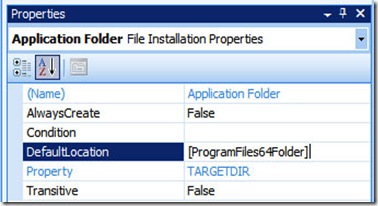
 x64 seploy project application folderx64 setup project application folder DefaultLocation x64 setup project TargetPlatform

We’re not using the Program Files (x64) Folder or the Program Files Folder folders so despite what the first images shows, I actually remove them to simplify maintenance.

My own confusion stems from the fact 64-bit Windows can run both x86 and x64 applications but they install to different locations. I think of it this way:

  x86 x64
Setup Project [ProgramFilesFolder] [ProgramFiles64Folder]
Windows x86 Program Files N/A
Windows x64 Program Files (x86) Program Files

In our case, we’re actually in the middle of a transition to x64: prod is running x86 and new prod, which is under construction, is running x64. On top of that our dev VMs are still x86. A setup project can only target a single architecture (sort of) so our solution was to simply add a second setup project. The first project remains untouched and we use it regularly at the moment; the second project targets x64 and we build it only when required (it’s only configured to build in the Release configuration). A VS solution can host multiple setup projects so there’s no problem with this arrangement.

Finally, it should be noted the Platform target of the source project that feeds content files into the setup project is configured as “Any CPU”. Since we’re not installing assemblies this doesn’t seem to matter. By was of a side note, the project containing our web parts and feature receivers is also configured to target Any CPU; MOSS obviously installs the related DLLs to the local IIS bin directories (IIS 7.0) but we’ve so far had no need to specifically configure these projects to output x64 assemblies. The beauty of .NET and the CLR at work? Dunno… but if not why are the options present?

Silverlight Penetration

I’ve posted a few entries on my findings around Silverlight penetration (see Resources, below, for more) but recently received a request for an update from someone called Harder. I’ve actually been meaning to post current stats for some time so thanks for the kick in the pants! I’ll aim to post updates every quarter going forward.

The figures represented are drawn from the Omniture SiteCatalyst web site analytics package, which tells me the number of visitors to our sites with a given plug-in vs the internet average over a given date range. Unfortunately the internet average is always shown as a constant with no further qualification (changing the date range doesn’t change the value and it’s unclear how the average is calculated) and Omniture does not indicate plug-in version. In the first case, I’m reporting the internet average from the point in time where I’ve recorded it—so I don’t have continuous data; in the second case, assume a mix of version 1 and 2. The same goes for Flash.

From the graphs below we can see one very interesting bit of information: Silverlight has been installed by 28.4% of internet users as of today (compare with 17.6 in September 2008). The number of users visiting our sites with Silverlight installed is considerably lower than the internet average, which is interesting because while our sites are graphically intensive and somewhat interactive we do target a wide audience with differing levels of technical ability.

TeM Silverlight and Flash Penetration Apr 2009

Silverlight and Flash Penetration Apr 2009

Resources

Friday, 17 April 2009

How to Install MOSS Videos

Just noticed MS has published a series of How Do I videos on TechNet relating to MOSS installation:

With more vids here.

Monday, 6 April 2009

westernaustralia.com makes the top 10 MOSS sites

It was really cool to be listed on various MOSS-tracking sites back in the day when www.wwesternaustralia.com was launched nearly two years ago but to be picked out—on a top 10 list by Joel Oleson, next to Ferrari, Cadbury, and Engergizer, no less—at this point in time is incredible.

Joel in particular comments on our “great search” but I wonder if he knows it’s not running on MOSS search or the BDC? Searching for tourism western australia moss and tourism western australia bdc brings up some pesky, ancient postings by Angus Logan—a Softie who was previously involved with the site, our move from MCMS to MOSS, and the initial decision to do search with the BDC. These post would have you believe we’re running happily with the OOB MOSS search and the BDC; this is definitely not the case and we’ve actually written our own custom search solution.

If you’re interested in the custom branding work we do at Tourism, have a look at the list of Some of the MOSS sites I’ve Worked On in the sidebar. wa.com is certainly a last example but the other tourism sites have all been provisioned on the same farm from a single site def/feature set.

As a parting comment, looking at the number of heavily-customised MOSS sites out there these days, it occurred to me that maybe this stuff isn't really all that hard to do anymore ;-)

Sunday, 29 March 2009

Driving Silverlight Uptake – Playboy Archive

There’s nothing link pornography to drive technology and with the Playboy archive now freely available online there’s really no reason not to install Silverlight.

Deep Zoom takes on a whole new meaning in this context. Really though, it’ll be interesting to review Silverlight adoption rates when the masses stumble across this stuff.

If you’re reading this at work and don’t feel comfortable viewing porn (in the name of research) on company time but still want to experience Deep Zoom, check out the Hard Rock Cafe’s memorabilia site instead.

Saturday, 28 March 2009

SharePoint Abstraction

There seems to be a seismic change afoot in the SharePoint development world as those of us working on the ground with SharePoint move forward with the platform. In my mind this is the SharePoint community growing forward from our dark history as we move beyond the pains of dealing with pure SharePoint and begin to view it as just another component of the applications we build. Instead of building into SharePoint we’re building on top of it.

WTF? I’m talking about wrapping domain abstractions around the SharePoint API so developers can work more intuitively with the domain model and for the obvious performance and unit testing benefits. In essence, it’s a return to good up-front design and worshipping the gods of encapsulation.

When I first started out in the real world everyone was building frameworks. In the object-oriented world, design often starts with the problem domain and a class hierarchy is constructed to model or reflect the relevant entities. The framework becomes the programmatic representation of both the problem and solution. You would never force the developers using that API to, for example, deal with a list of Objects that (these were the days before generics) that would have to be cast to a specific type; your list would derive from an existing list class or one of its parent classes and close the gates to a subset of types and strongly-typed operations. Database access and whatnot would be similarly bubble-wrapped with a common, isolated, and tested mechanism to open a database connection, manipulate a specific object, and clean up.

The last few years of dealing with the minutiae of the SharePoint API has led us astray on the back of the SDK and correct and incorrect code samples available online. Instead of taking these snippets at face value—as samples to be adapted to meet our needs, they’ve been viewed as the code to make SharePoint work at its most basic level. WSS 3.0/MOSS 2007 bugs aside, it’s been difficult bridging the gap from managed to unmanaged code for those of us raised in the cuddly worlds of Java and .NET. Simply put, the SharePoint API is large, comes complete with legacy baggage, and doesn’t always do things the way .NET developers expect. Fair enough, it’s a big application (er, platform) with a history of its own and a wealth of functionality… and it’s not .NET! The end result, however, is we’ve been too busy dealing with a steep learning curve to bother with the application of good design practices and hide away things those aspects that are hard to do well.

The first inkling in my mind of a return to abstraction came from reading Eric Shupps’ post on test driven development with SharePoint. I’m neither a TDD user nor am I a fan but after seeing it in action at Jeremy Thake’s Perth User Group presentation last week, I now understand not having to mock the SharePoint API by abstracting countless objects make building unit tests a lot easier. But wait a minute—encapsulating access to SharePoint and refactoring an application to match the problem domain sounds familiar! Oh yeah, that’s because we used to do it all the time!!!

The Microsoft Patterns and Practices gang have been busy putting together the long awaited SharePoint Guidance bits. It’s interesting to note the sample application they’ve built makes welcome use of abstractions based on common design patterns—all of which are clearly documented. Microsoft obviously has a lot of interaction with customers and the community, apart from product knowledge of both SharePoint and .NET, so the SPG will most likely prove to be an invaluable resource as we expand our understanding of SharePoint and real best practices become apparent.

One final note: my previous tech lead (who now works on SharePoint v14) is a beautiful Japanese fellow with no time for big, unwieldy frameworks and sprawling code. I would label him very much a follower of the minimalist style—an approach not invaluable to IT as a whole (I believe we like building complex solutions because the challenge makes us feel good). So where does the argument for abstraction fit with simple, clean design principles? I believe the two go together hand in glove for the simple reason abstraction leads to centralisation and therefore consistency, meeting the minimalist designer’s goal of less code. Instead of every developer handling list access in a different way with ten lines of code wrapped in three using statements, a developer calls a method in one line of code. But this is perhaps another discussion ;-)

Additional Reading

Clear the Flash Cache aka Local Storage

You’re probably used to the idea of session state and cookies and how to clear them using you’re favourite toolbar. Did you know the Flash plug-in also has its own client-side cache called Local Storage? Just like any other cache, stuff will occasionally get stuck in Local Storage and you may need to clear it out.

You can control your local storage settings by right-click->Settings… on any Flash movie but as far as I know you can’t clear cached data using this approach. To comprehensively clear the Local Storage cache I use this web-based tool provided by Adobe:

http://www.macromedia.com/support/documentation/en/flashplayer/help/settings_manager07.html